
Managing Conversations in Inbox
How to keep Inbox work organized from first message to resolution.
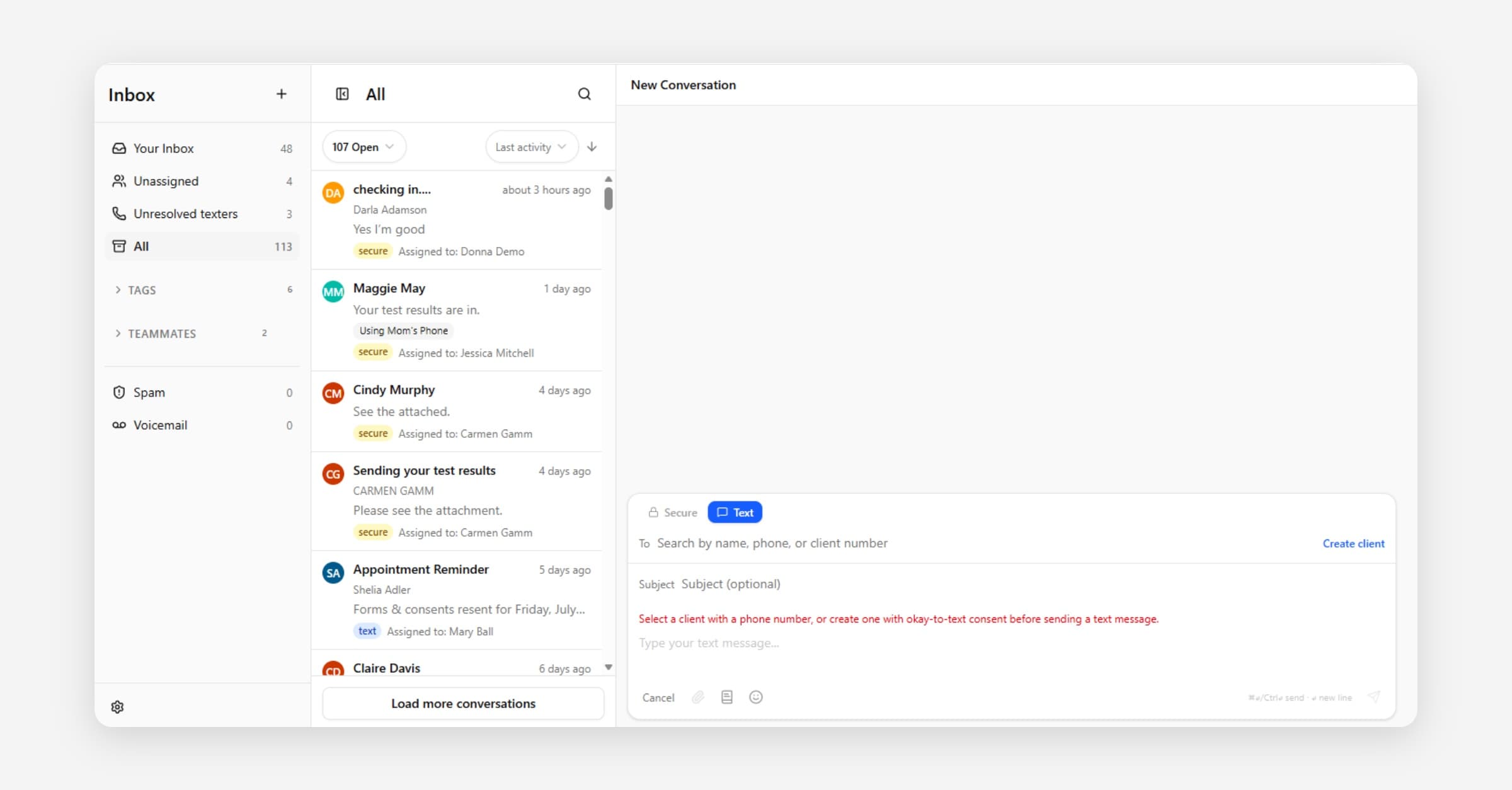
A conversation is the working record for a message thread. Use it to track what is communicated, who owns the follow up, and what still needs to be done. If you are brand new, start with Getting Started in the Inbox.
This article is about organizing work in Inbox, assigning, notes, tags, bulk actions, and closing. For how to write outbound SMS texts, use templates, and fix blocked sends, see Sending Text Messages.
Recommended workflow
1. Open the conversation and read the latest message.
2. Check the related person or organization record if needed.
3. Assign the conversation to the teammate responsible for follow up.
4. Reply, or add an internal note for staff-only context.
5. Create a task when there is work that should happen later.
6. Close the conversation when no more action is needed. (Closing a conversation never deletes it. All conversations are saved for historical record.)
Replies vs. internal notes
Replies are sent to the contact through the connected channel. Notes are for your team only, use them to capture context, decisions, handoff details, or why a conversation was closed. Before any reply with sensitive details, confirm the channel and use a secured message when needed (see Inbox Overview).
Message timestamps and time zone
The time a text message shows in Inbox comes from the time zone set on the location, not from each staff member's own computer or time zone. If timestamps on texts look wrong, for example messages appear an hour or more off, open Settings > Scheduler Settings > Schedule > Locations, open the location, and set the correct named time zone (such as America/New_York or America/Chicago). See "Time zones" in Locations and Location Hours for where that field lives. Fixing the time zone only corrects timestamps on messages sent after the change; timestamps already shown on older messages do not update.
Which line a conversation came in on
If your organization uses more than one texting number with a Friendly name or Campaign label set, the conversation list shows a small badge naming that line (for example "Downtown Line · Crisis intake") so you can tell at a glance which number a client texted. The same label appears in an Inbox line card in the conversation sidebar once you open the thread. Organizations with a single, unlabeled number see no change, the badge only appears when a line has a Friendly name or Campaign label. See Purchasing Your Text Number for where administrators set those labels.
Starting a new conversation
To start a brand-new message (not a reply in an existing thread):
Open Inbox.
Select the New button with the plus (+) icon next to "Inbox" at the top of the conversation list. Its tooltip says Create new conversation.
In the New Conversation window, choose the conversation type, for example a regular text or a secured message. For when to use each, see Secured messages vs. regular text messages in Inbox Overview.
In To, search for and select the contact, or type a phone number directly if the person is not yet in CoolFocus. There is also an option to Create client.
For a secured message, enter a Subject.
Type your message, then select Send (or Send Text for a regular text).
The send arrow next to the message box only lights up once the conversation has both a recipient and a message typed in. If you don't see it yet, check that you have picked a contact or entered a phone number in To, and that the message field is not empty.
You can also press n from Inbox to start a new secure message. After you send, CoolFocus opens the new conversation so you can continue there.
When you start a brand-new conversation, the type of message that the composer opens with follows your organization default unless you change it in the dialog. See Inbox Settings.
Inbox looks empty, or you don't see a Send button?
Check that you are looking in the right mailbox. Conversations are split across Your Inbox, Unassigned, All, and Closed, so a conversation you expect to see may simply be filed under a different one. See Getting Started in the Inbox for what each mailbox shows. If you are replying in an existing conversation and there is no Send button, look for a yellow SMS sending is blocked banner in the composer, texting may be blocked for that contact. See "When a text message will not send" in Sending Text Messages.
Composer tools and attachments
When you start a new conversation or reply, the composer shows tools that help you write and send:
• Attach a file: send a single attachment with your message. Allowed types are JPEG, PNG, and GIF images, plus MP4 or 3GPP video. The maximum size is 5 MB. While an attachment is uploading the Send button is disabled. If you change the recipient before sending, the selected attachment is cleared.
• Templates: insert a saved message into the body so you do not have to retype common replies. How to use and create templates is covered in Sending Text Messages.
• Emoji: insert emoji at the cursor in the message body.
Notes about secured messages:
• Secured messages require a subject. You can send a secured message with only an attachment and an empty message body if needed.
• Image and video attachments in secured messages appear inline for the contact in the Client Portal. That means the picture or video shows right inside the message itself, not only as a separate file they have to download first. Photos show as small previews in the message (the contact can open them at full size), and videos play in the message with normal play controls, so the contact does not have to save the file to their device just to view it.
Attachments, calls, and tasks
Attachments, calls, notes, and tasks keep follow-up work connected to the conversation. Use them when the thread needs more than a simple reply, so that the next person sees the full picture in one place. For more detail on notes, tags, and tasks together, see Notes, Tags & Tasks in Inbox Conversations.
Tags
Tags label conversations with a short, reusable name so they are easy to find later. A common use is marking closed conversations that never got a reply, for example with a tag like "No Response," so they can be reviewed or reported on afterward. Tags apply to conversations in any status, open or closed, so you can tag a conversation as you close it and still filter by that tag later.
To find tagged conversations, type the tag name into the Inbox search box. The search matches conversations by the tag name in addition to the contact name, subject, and message content. So searching "No Response" surfaces every conversation carrying that tag.
Note: The purpose of an Inbox Tag is to simply help you organize your message threads within Inbox; they do not translate to the client's record. A conversation tag is only attached to the conversation in Inbox, not to the client record.
Selecting multiple conversations and bulk actions
Use the checkboxes in the conversation list to select more than one conversation at a time, or select all conversations in the current view. Once you have a selection, an actions menu appears (•••) with the available bulk actions:
• Add tag: choose an existing tag from the menu to apply it to every selected conversation at once. Conversations that already have the tag are left as they are. This works from any mailbox view, open or closed.
• Close: close every selected conversation at once. This is available from the open conversations view.
Bulk actions apply to up to 1,000 conversations per request. If your selection is larger, narrow it down, for example with a filter or search, before applying the action.
Closing conversations
Close a conversation when the question is answered or the action is complete. Closed conversations stay available for history and reporting, and you can always reopen one if the person comes back. A closed conversation will also reopen automatically if the recipient sends another reply.
Keyboard shortcuts
While a mailbox is open, you can navigate and reply without a mouse: j and k move to the next and previous conversation in the list, g m, g u, and g a jump to the Your Inbox, Unassigned, and All mailboxes, n starts a secure message, and r focuses the reply box. See Keyboard Shortcuts and the Command Menu for the full list.
Related
• Notes, Tags & Tasks in Inbox Conversations
• Conversation Types and Linked Records
• Merging & Cleaning Up Conversations
• Purchasing Your Text Number