
Sending Text Messages
How staff should think about outbound SMS from CoolFocus.
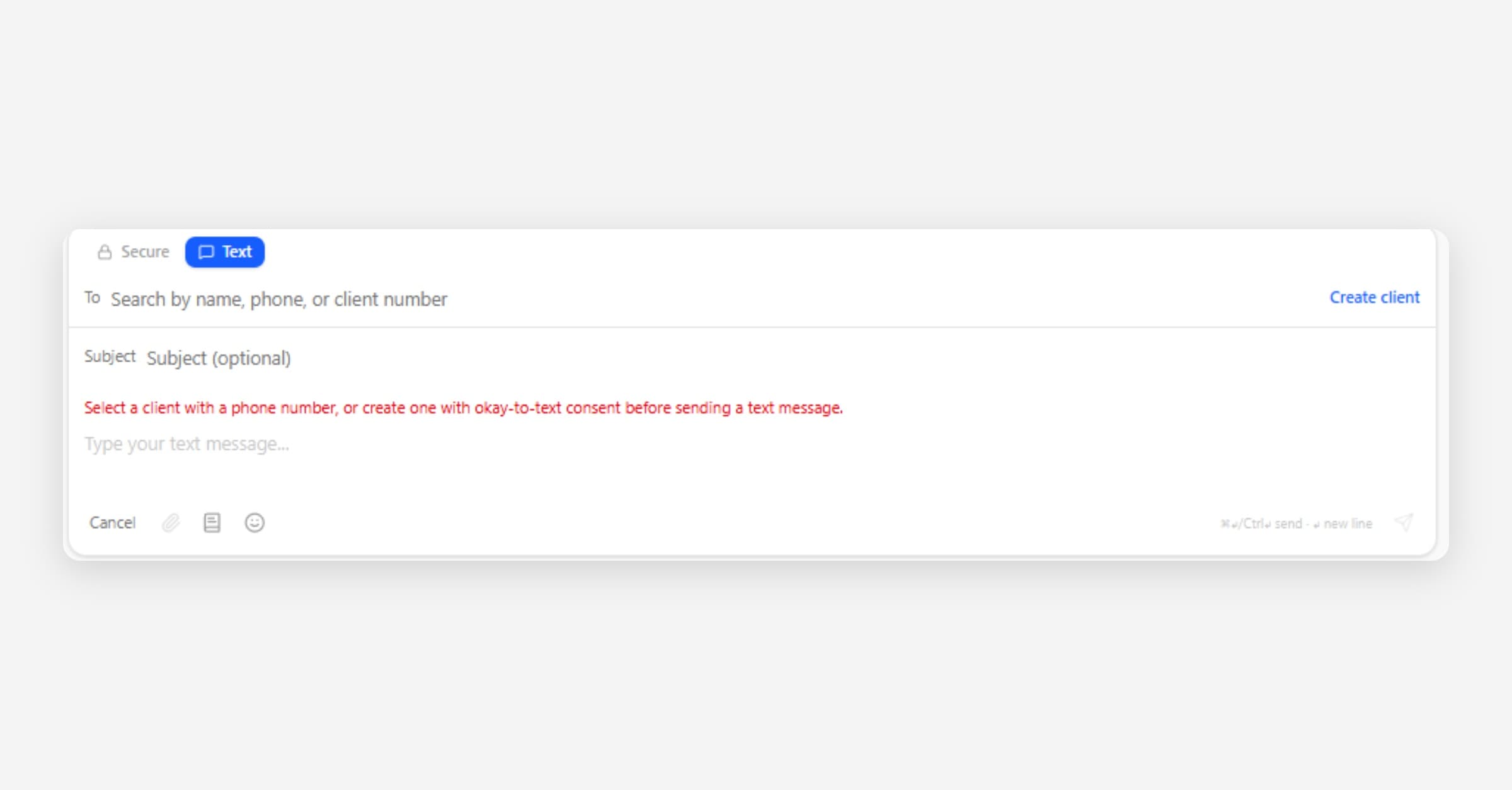
Text messaging in CoolFocus is designed for practical follow-up with people externally connected to your organization. Messages should be clear, respectful, and appropriate for the recipient's relationship with you.
This article is about outbound SMS (Short Message Service) text messages: what to check before you send, how to write a good text, templates, when not to use SMS, blocked sends, and phone numbers. For day-to-day Inbox habits (assign, notes, tags, close), see Managing Conversations in Inbox.
Texting fee: Inbox SMS — everyday text messages (including symbols and emoji), incoming and outgoing will add a text messaging usage fee on your monthly CoolFocus invoice when CoolFocus sends or receives an actual text message. Turning a setting on alone does not bill you, but each message that goes out or comes in can. Full list: What Counts as a Text Message & What are the Text Usage Fees?.
How to send a text message
Open the contact's conversation in Inbox, or start a new one if none exists yet.
Select Text as the message type, rather than Secure, so the message goes out as a regular SMS instead of through the encrypted client portal. Use Secure instead when the message includes sensitive information.
Confirm the contact has a valid mobile number and is marked OK to text. If either is missing, the Send button stays disabled, see "When a text message will not send" below.
Write your message, or select the Templates icon to insert a saved template.
Select Send.
If the Send button is disabled or a yellow banner appears in the composer, texting is blocked for that contact. See "When a text message will not send" below for the reason and how to fix it.
Before sending a regular (SMS) text message
Check that:
• The recipient has a valid mobile number.
• The message is appropriate for SMS (no personal health or sensitive information).
• Your organization has permission or a valid relationship for the message.
• You are sending from the right conversation or record.
Writing a good text
• Keep it short and specific.
Most cell carriers count approximately 150 characters as one text message (one "segment"). Longer texts are split into multiple segments, and each segment can count toward your organization's monthly texting usage, so a long message can be billed as several texts. An SMS message is meant to be brief. If a conversation or segment gets lengthy, it may be more appropriate to make a phone call and include Notes for that conversation.
• Include a requested action or the next step that is to be taken.
• Avoid private details that do not belong in an SMS text message. For a quick guide on when to send a regular text versus a secured message, see When to Use a Regular Text vs. a Secured Message.
• Use plain language and avoid internal abbreviations.
Using message templates
For messages you send often, use a template instead of retyping the same text. Click the Templates icon (the book icon) in the message composer to open the template picker. Then search for the template you want and select it to insert its text into your reply.
• If your organization has not created any templates yet, the picker shows a "No templates yet" message. Select New Template to create one on the spot, or ask an administrator to add one in Settings → Phone → Templates.
• Templates you create from the composer are available to your whole organization immediately, the same set an administrator manages from Settings.
These templates are for Inbox messages only. They are not used for appointment reminder texts.
An appointment reminder text is a message that CoolFocus sends about an upcoming appointment, for example a confirmation after booking, or a reminder a day or hours before the visit. Those can go out automatically on a schedule, or when staff members send reminders from the calendar. Appointment Reminder Templates use their own reminder wording, and are different from the Inbox templates described above.
You can find and edit appointment reminder text templates under Settings > Schedule > Reminders. For full setup details, see Appointment Reminders — Settings & Sending.
When not to use SMS
Use a different channel, such as Secured Messaging or Phone call, when the message includes sensitive details, long instructions, documents, or anything that should be handled through a secure portal or direct staff conversation.
When a text message will not send
Inbox checks whether a text can go out before it is sent. A regular text message will not send when the receiving phone number is not valid, or when that number has opted out of receiving messages from your organization.
In those cases:
• The composer may show a yellow banner that says SMS sending is blocked, with a short reason.
• The Send button for SMS replies is disabled until the issue is fixed.
• You can still switch to an internal note to leave context for your team.
• If you need to reach the person with sensitive details right away, consider a secured message instead of SMS.
Common reasons a text will not send:
• Invalid or missing mobile number: the contact has no mobile number on file, or the number is incomplete, incorrectly formatted, or not able to receive texts. Update the contact record with a valid mobile number, then try again.
• Opted out: the person texted an opt-out keyword such as STOP, or the carrier reports the number as opted out. CoolFocus automatically unchecks that contact's OK to text box when this happens, so the record itself shows the person can't be texted, not just the conversation. Do not keep retrying SMS. They must text START to your organization's texting number if they want texts again; doing so automatically rechecks the OK to text box. Until then, use another contact method (call, secured message, or email if appropriate).
• Not marked OK to text: contact preferences must allow SMS before a text can send. This box can be unchecked directly on the record, updated automatically by a STOP opt-out as described above, or set by recording consent from the phone number as described below.
• Client case deactivated: reactivate the case before texting.
• Multiple records share this phone number: if the same phone number is on two or more records (client, donor, volunteer, or other contact), Inbox shows a banner asking you to confirm you're texting the right person before continuing. See "Multiple records share this phone number" in Understanding Text Message Delivery Warnings for how to review or merge the duplicate.
The OK to Text checkbox follows opt-out and opt-in automatically
The "OK to Text" checkbox on a contact record updates itself so it always matches what CoolFocus actually blocks:
• When a contact opts out, either by texting STOP/UNSUBSCRIBE or through a carrier-reported opt-out, CoolFocus unchecks OK to Text on that record.
• When the contact texts START to opt back in, CoolFocus checks OK to Text again so staff can resume texting them from the composer.
Staff do not need to manually uncheck the box after an opt-out. If a record shows OK to Text as checked, texting is genuinely allowed for that person.
Recording consent by hand from a phone number
When a client gives you permission to text them out loud, on paper, or through a web form, record it next to their phone number instead of relying on memory.
Open the phone number on the contact's record.
Select Record consent next to the number.
Choose Consented or Opted out.
If you chose Consented, select how the client gave permission: Verbal, Written, or Web form.
Select Save texting permission.
One save records both the consent entry and the OK to Text checkbox, so there's no second step to update the checkbox yourself:
• Saving a Consented entry turns OK to Text on for that person.
• Saving an Opted out entry turns OK to Text off for that person.
Do not record START or STOP replies here. CoolFocus already logs those automatically when the person texts them.
If a Send is attempted while blocked, the system rejects the message and marks it as failed. For yellow warning cards that appear after a send attempt (for example landline, unreachable phone, or carrier filter), see Understanding Text Message Delivery Warnings.
Removing or disabling a number
• Clearing or deleting a phone number from a person's record removes that phone entry. Outbound texts will not be sent to that number, and inbound texts from it will no longer match to the person's conversation.
• If the removed number had been set as the Primary phone, the Primary phone field on the record is cleared.
• If you need to keep a phone number on file but stop texting, record the person's SMS opt out and use another contact method, such as a secured message or a call.
Related
• What Counts as a Text Message & What are the Text Usage Fees?
• Managing Conversations in Inbox
• Understanding Text Message Delivery Warnings
• Texting Compliance Requirements
• Connecting Your Text Number