
Understanding Text Message Delivery Warnings
How to read the yellow delivery warning cards shown in Inbox when a text message cannot be delivered.
Understanding Text Message Delivery Warnings
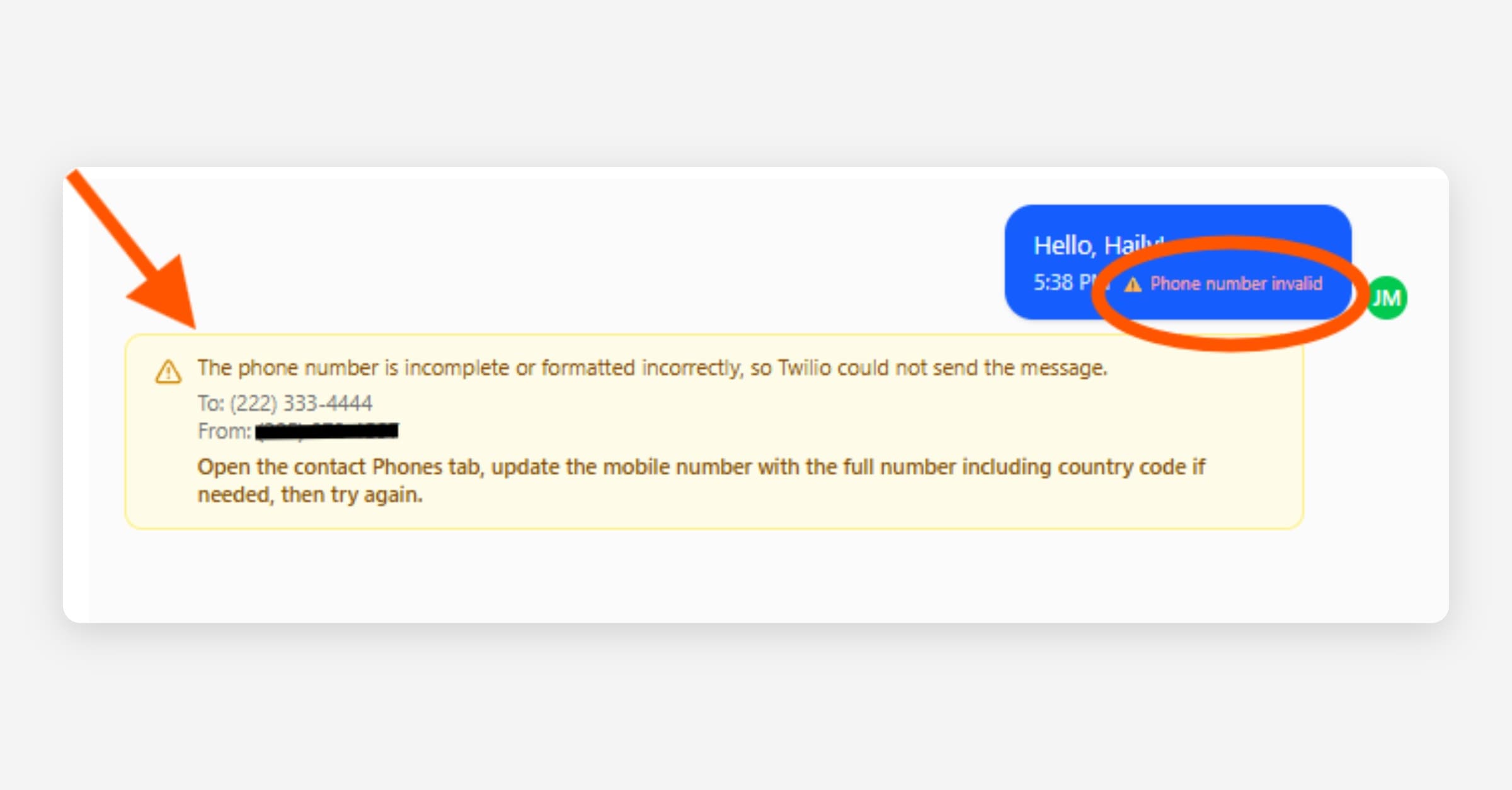
When an outgoing text message cannot be delivered, Inbox may show a yellow warning card in the conversation. The card is there to help staff understand what happened and what to do next.
The warning card is internal. It is not sent to the contact.
Pre-send blocks vs delivery warnings
Some issues are caught before you click Send. When texting is not allowed for the current contact, Inbox shows an amber banner in the thread that says "SMS sending is blocked" with a short reason, and the Send button is disabled for SMS replies. Delivery warnings only appear after a send attempt and are attached to a specific message in the thread.
• You can still switch the composer to Note to leave an internal note for your team.
• If you need to contact the person right away with sensitive details, consider a secured message for the client's portal instead of SMS.
Common reasons include:
• "Contact is not marked OK to text. Update their contact preferences before sending SMS."
• "This client's case is deactivated. Reactivate the case before sending SMS."
• The contact has opted out of SMS. They must text START to your number to opt back in.
• Missing or invalid mobile number. Update the record with a textable mobile number.
When the reason is that the contact is not marked OK to text, a Mark OK to text button appears next to the banner. Selecting it opens a dialog where you can record the client's consent without leaving the conversation.
Fix the underlying issue on the contact record, then return to the conversation. Once the requirement is met, SMS sending is re-enabled.
OK to Text and opt-out stay in sync
The "OK to Text" checkbox on a contact record reflects opt-out status automatically. Staff do not need to update it by hand.
• When a contact opts out, whether by texting STOP or UNSUBSCRIBE, or through a carrier-reported opt-out, CoolFocus unchecks OK to Text on that record at the same time it blocks the number.
• When the contact texts START to opt back in, CoolFocus checks OK to Text again.
Because of this, a record that still shows OK to Text checked means texting is genuinely allowed. If a send is blocked with "Contact is not marked OK to text," the fix is to confirm consent with the person directly rather than simply re-checking the box.
How to read the warning card
A delivery warning usually has three parts:
• The main message: explains the most likely reason the text did not go through. For example: "This number is a landline and cannot receive text messages. Try calling instead."
• The phone numbers used: the card may show To (the phone number CoolFocus tried to text) and From (your organization's texting number). These help staff confirm whether the right contact number and sending number were used.
• The recommended next step: tells staff what to do next. For example: "Use a voice call or update the record with a mobile number."
Common warnings
This number is a landline
The number cannot receive text messages. This often means the number is a landline, office phone, or another non-SMS-capable number.
• What to do: Call the number instead, or update the contact record with a mobile number that can receive texts.
This phone number is invalid
The number may be incomplete, formatted incorrectly, disconnected, or no longer active.
• What to do: Confirm the number with the person, then update the contact record before sending another text.
This contact has opted out of SMS
The number is blocked from receiving texts from your organization. This usually happens when the person texted an opt-out keyword such as STOP, or when the carrier reports the number as opted out. CoolFocus also unchecks OK to Text on the record at this point, so the record matches the block.
• What to do: Do not keep retrying. The person must text START to your texting number if they want to receive texts again. Once they do, CoolFocus checks OK to Text back on automatically.
• The record's OK to text checkbox reflects this automatically: a STOP unchecks it, and a later START rechecks it. Staff do not need to update that box by hand for a STOP or START reply, whether it arrives as a fresh message or a carrier report on an existing one.
Consent is required
CoolFocus does not have recorded SMS opt-in consent for this phone number.
• What to do: Open the contact's phone information, record consent or send a consent link, then try again after consent is complete.
Multiple records share this phone number
When the same phone number is on two or more records, client, donor, volunteer, or other contact, CoolFocus shows a "Multiple records share this phone number" banner at the top of the text conversation, instead of a warning on a single message. The banner names up to three of the matching people, plus a count of any others, and reminds staff to confirm they are talking to the right person before continuing. An unidentified "Unknown Texter" placeholder is not counted as a matching record, so the banner only lists real people.
• Select Review records on the banner to see every matching record, along with its role (Client, Donor, Volunteer, and so on) and person number.
• Select Open next to a record to view it on its own record page in a new tab, whether that page is the client's chart, a donor record, a volunteer record, or a contact record. If a record has no matching page on your account, for example a plain contact when your organization does not use the Contacts feature, Open stays disabled for that record.
• Select Merge records to combine the duplicates. CoolFocus starts the merge with the record already linked to this conversation as the primary record, or the first match if none is linked yet. See Merging Duplicate Records.
The banner stays visible until the duplicate is resolved, for example by merging the records or removing the shared number from the wrong one. Older messages sent before this banner existed still show their original note in the thread if the banner is not currently on screen.
The phone is unreachable
The phone may be turned off, out of service range, or temporarily unable to receive texts.
• What to do: Wait and try again later. If the message is urgent, call or use another contact method.
The message was blocked or filtered
The carrier or recipient's phone may have blocked the message. This can happen because of spam filtering, blocked sender settings, suspicious links, repeated messages, or carrier rules.
• What to do: Review the message content, avoid spam-like wording, and use another contact method if needed.
An attached photo or video could not be delivered
The carrier rejected the attachment because it was too large, or Twilio could not fetch or process the file. CoolFocus resizes JPEG and PNG photos automatically before sending, but a GIF, a video, or a photo that is still too large after resizing can be rejected this way.
• What to do: Send the message again without the attachment, or send it as a secure message instead. A secure message delivers the file at full quality with no carrier size limit.
The message was not delivered
Sometimes the carrier does not give CoolFocus a specific reason. In that case, Inbox may show a more general delivery warning.
• What to do: Check the phone number and message content. If the problem repeats, send the conversation details to support.
Texting is paused for your organization
CoolFocus can pause all outgoing texts for your organization for a short time, for example while your texting numbers move to a new carrier. This is not a problem with the message or the contact's phone number, and no message is lost.
• The card names the date and time your organization's texting resumes (in your local time zone) along with the reason for the pause.
• Any message you tried to send while paused is held and sent automatically once the pause ends. You do not need to resend it.
• What to do: Wait for the pause to end. If it lasts longer than the time shown, contact support.
When not to retry
Do not keep retrying when the warning says the number is a landline, opted out, invalid, or missing required consent. The next step is to fix the contact record, get consent, or use another contact method. When texting is paused for your organization, there is nothing to fix on your end either: the message sends on its own once the pause lifts.
Retrying later can make sense when the phone is temporarily unreachable or when the carrier reported a general delivery issue.
A message stuck on "Sending"
Every outgoing text moves through a short life cycle: Inbox shows Sending the moment you hit Send, then updates to Sent once the carrier accepts the message, and to Delivered once the carrier confirms the phone received it. This usually takes a few seconds.
A message can stay on Sending when:
• CoolFocus is still waiting on the carrier to confirm the message, or
• the carrier confirmed delivery, but the status update back to CoolFocus did not go through, so the conversation never updates to show it.
That second case means the text may already be sitting on the contact's phone even though Inbox still shows Sending. A status stuck on Sending is not the same as a failed send: a failed send shows a yellow warning card with a reason, as described above.
Give it a few minutes. Most status updates arrive within seconds, but a delayed carrier response can take longer.
If it's urgent, confirm with the contact directly, by phone or by asking in the same thread, whether they received the text.
If the status still shows Sending after several minutes, or the same message repeatedly gets stuck, send it to support for review.
Settings → Phone → Logs: reading the organization-wide log
Administrators can review every delivery issue your phone provider has reported for the organization at Settings → Phone → Logs, not just the warning cards on an open conversation. This log covers your whole phone number, so it carries phone call and account-level notices alongside text message issues.
Each row names what it is about: Text message, Phone call, or Account notice. The issue count at the top of the page splits the same way, for example "6 issues found (4 text messages, 1 phone call, 1 account notice)", instead of one combined number. The reference ID under each row matches what the row is about: a Message ID for a text message, a Call ID for a phone call, or a Reference for an account notice.
A phone call or account notice on this log does not mean your texting is down. Only rows labeled as a text message describe an SMS that did not deliver, and each of those affects only the one phone number it names, not your texting as a whole.
What to send support
If support needs to investigate, include:
• The conversation or contact name.
• The date and time of the failed message.
• A screenshot of the yellow warning card, or of the message stuck on Sending.
• The To and From numbers shown on the card, if there is one.
• Whether the message was a direct Inbox text, an appointment reminder, or an SMS notification for a secured message.
Do not include unnecessary sensitive client details in support notes or screenshots.