
Notes, Tags & Tasks in Inbox Conversations
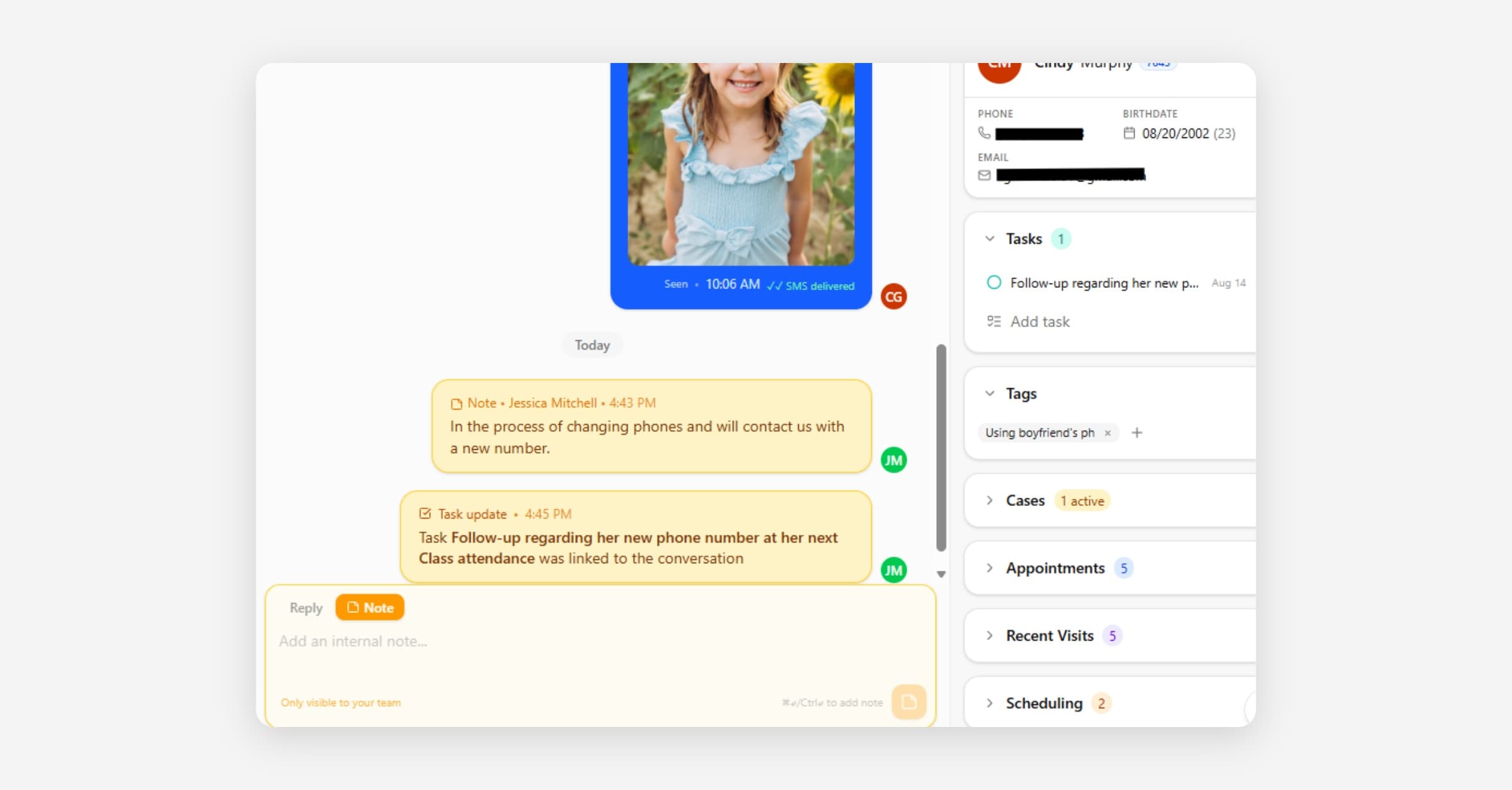
Conversations support notes and tasks, just like other records — but in the Inbox, they do something special: They keep follow-up from falling through the cracks. This article is about notes and tasks inside a conversation in Inbox, plus tags, which help you organize threads. For the general versions of notes and tasks used elsewhere in CoolFocus, see Notes and Tasks.
Internal notes vs. replies
A reply goes to the contact. Once a reply is sent, it becomes part of the conversation history and cannot be deleted from the thread. If you send something by mistake, send a short follow-up correction or clarification in the same conversation.
An internal note is for your team only — the contact never sees it. Use notes to leave context, decisions, or handoff details right on the conversation, so the next teammate has full context of the situation. Because internal notes are staff-only, your team may edit or delete them when cleanup is needed. Editing or deleting an internal note does not change any reply that was sent to the contact. (More on this in Inbox Overview.)
Cleaning up a conversation
Closing, processing, deleting, or merging a conversation affects the conversation record or mailbox view. It does not delete one individual sent reply from the history. Sent replies stay with the conversation for context and accountability.
When you close or tidy a conversation, you can also add a tag (for example, "No Response") so the thread stays findable later without leaving it open.
Tags on a conversation
Tags label a conversation with a short, reusable name so your team can organize and find it later. In an open conversation, tags appear in the right column with tasks, so you can label the thread while you add notes or follow-up work.
A common use is marking closed conversations that never got a reply — for example with a tag like "No Response" — so they can be reviewed or reported on afterward. Tags apply to conversations in any status, open or closed, so you can tag a conversation as you close it and still filter by that tag later.
To find tagged conversations, type the tag name into the Inbox search box. The Search will match conversations by the tag name in addition to the contact name, subject, and message content. So searching "No Response" surfaces every conversation carrying that tag.
You can also select several conversations in the list and use the bulk actions menu (•••) to Add tag on many threads at once. See Managing Conversations for bulk tagging and other list actions.
Note: The purpose of an Inbox Tag is to simply help you organize your message threads within Inbox; they do not translate to the client's record. A conversation tag is only attached to the conversation in Inbox, not to the client record.
Tasks on a conversation
Attach a task to a conversation for anything that needs to happen later — a callback, a document to send, a follow-up next week. Give it an owner and a due date.
What makes conversation tasks especially useful is that they stay visible in the conversation itself. When a task is linked, assigned, changes status, is completed, or is deleted, an entry appears right in the conversation timeline — so the whole team can see the follow-up work inline, without leaving the thread.
The key benefit: tasks keep conversations from being lost
Here's the part worth understanding, because it changes how you work:
If you close a conversation while a linked task is still open, changing that task's status will automatically reopen the conversation.
In other words, closing a conversation isn't final while there's unresolved task work attached to it. When the task moves — someone picks it up, works it, or changes its status — the conversation comes back into your team's view so it's handled, not forgotten.
How to use this
• If a conversation is done, close it. If it fits a pattern your team tracks (for example, no reply from the contact), add a tag before or as you close it so you can find it later.
• If a conversation needs something later, add a task first, then close it. You don't have to leave it open as a reminder — the task is the reminder.
• When the task changes, the conversation resurfaces on its own, so nothing slips.
• Use tags for organizing and reporting on conversations. Use tasks when someone still needs to do work. Tags do not reopen a conversation; tasks can.
This lets your team keep the Inbox clean (close what you can) without losing track of open commitments.