
Customizing the Secure Message Invite
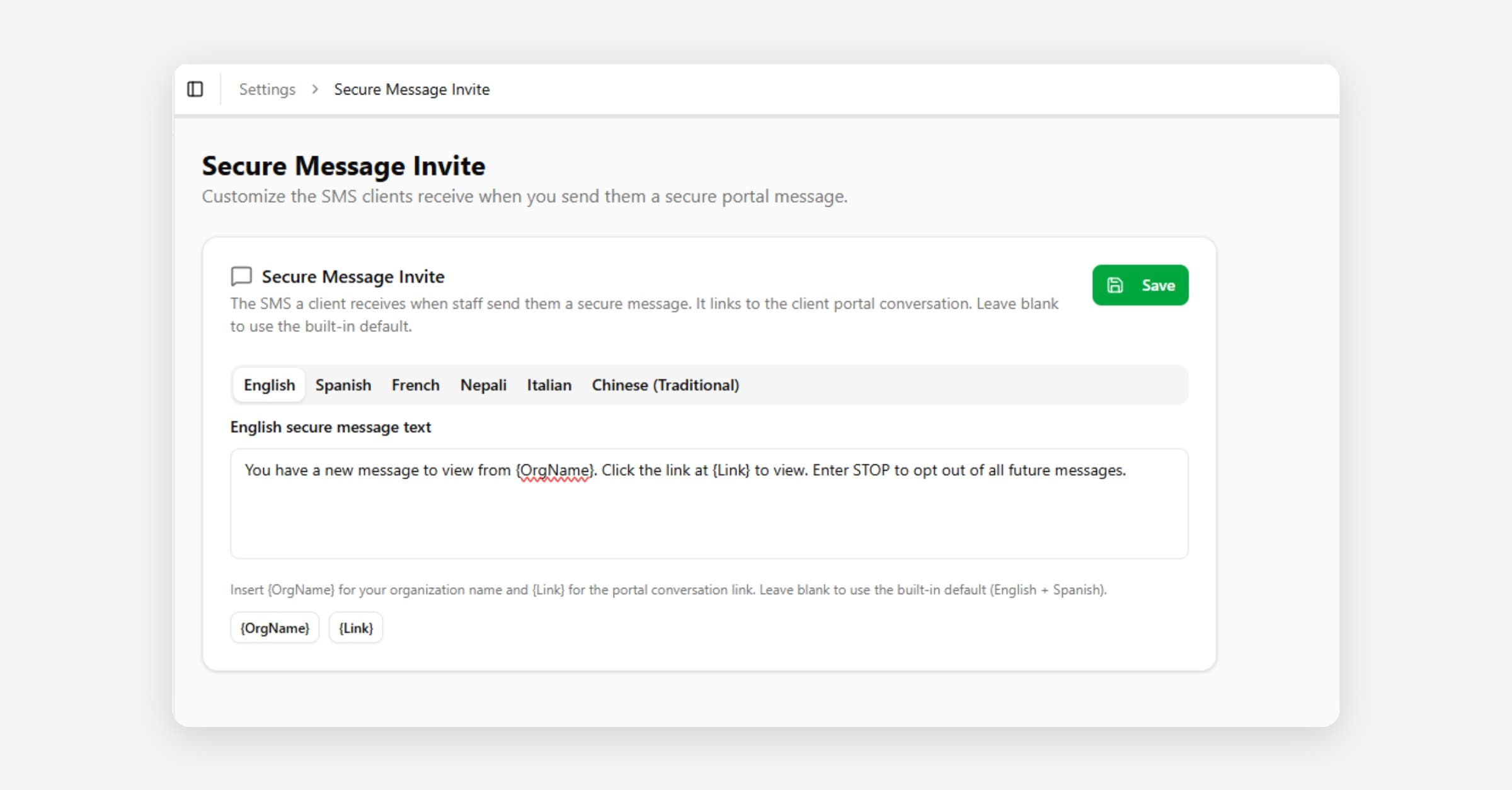
When a staff member sends a secured message to a contact, CoolFocus texts an invite to log in to the Client Portal to read the message. Administrators can customize the wording of that invite text instead of using the built-in default copy.
Texting fee: Secure-message invite text messages (client portal text message when a text is actually sent to the client) will add a text messaging usage fee on your monthly CoolFocus invoice when CoolFocus sends or receives an actual text message. Turning a setting on alone does not bill you, but each message that goes out or comes in can. Full list: What Counts as a Text Message & What are the Text Usage Fees?.
See Inbox Overview for the difference between secured messages and regular text messages.
Where to find it
Go to Settings → Communication → Secure Message Invite. This setting is only available to organizations with the Inbox module enabled.
How it works
• The editor shows an English text box for the invite body, plus a tab for each additional language your Client Portal supports (for example, Spanish).
• Leave a field blank to keep using the built-in default copy for that language. Nothing changes for your contacts until you save a customization.
• If you customize the English body but leave a translation blank, contacts in that language see the English body rather than a stale built-in translation, once you have made any customization.
Merge fields
Two merge fields are available, and can be inserted with the buttons below the text box:
• {{OrgName}} - your organization's name.
• {{Link}} - the secure link to the conversation in the Client Portal.
The invite text must include {{Link}} in every language you fill in (including translations). Without it, contacts have no way to reach the conversation, so CoolFocus blocks saving a version that is missing the token.
Saving
Select Save to apply your changes. The next secure message invite sent to a contact uses your customized wording (and falls back to the built-in default for any language you leave blank).
Related
• What Counts as a Text Message & What are the Text Usage Fees?
• The Client Portal: Sharing information with your Clients
• Conversation Types and Linked Records
• Purchasing Your Text Number