
How to Create a Time Sheet Batch
Create a Time Sheet Batch in Serve to enter many staff hour records quickly with shared defaults.
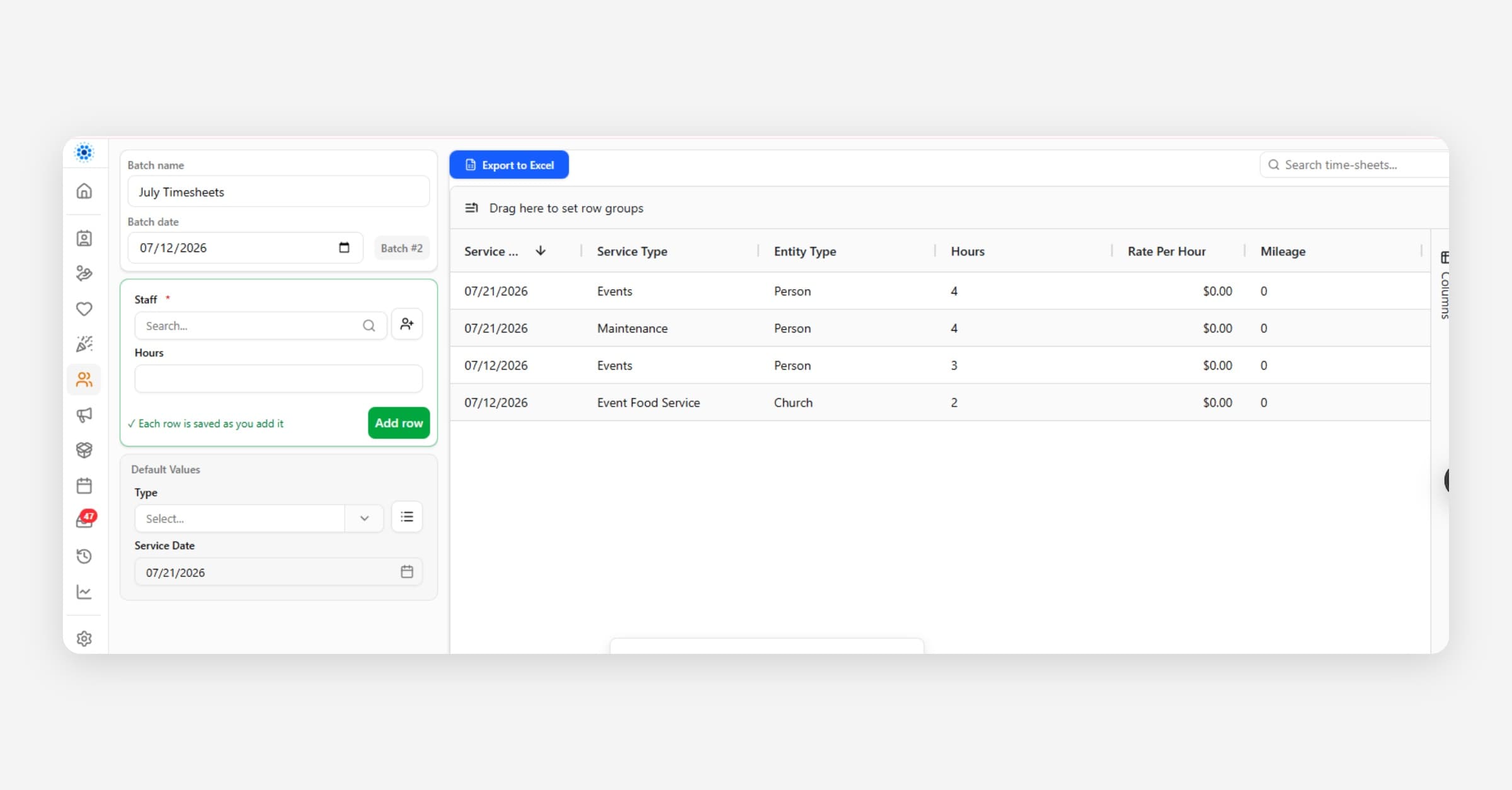
A Time Sheet Batch is a data-entry workspace in the Serve module. It groups many Time Sheet hour records so you can log staff service quickly—without opening a separate “create form” for every person.
Use a batch when you have a stack of hours for the same day, program, or service type (for example, everyone who served at a Saturday event).
If you only need one time sheet, create it from Serve → Time Sheets with the regular Create button instead.
What a batch does
Gives the batch a Batch # (assigned automatically) and optional Description and Batch Date.
Lets you set shared defaults (service type, program, service date, default hours, and more) that carry onto each new time sheet you add.
Opens a batch entry screen where you pick the Staff person for each row, adjust hours if needed, and keep adding lines.
Tracks a running Count of time sheets and Total Hours as you go.
Each line you save is a real Time Sheet on that staff member’s record. The batch is the folder that held the entry session together.
Before you start
The people you will log hours for need Staff records in Serve.
Know the service date, hours, and (if your org uses them) service type or program.
You need permission to create time sheets (and batches) in Serve.
Way 1 — Create from Time Sheet Batches (recommended)
Open the Serve module.
In the left menu, under Batch Entry, open Time Sheet Batches.
Select Create.
Fill in the batch header:
Description — optional label your team will recognize (for example, “Saturday Thrift – June 14”).
Batch Date — defaults to today; change if you are logging for another day.
Optionally set Shared defaults so every new row starts with the same values:
Service Type
Program
Gap Ministry (when your org uses gap ministries)
Service Date
Default Hours
Rate Per Hour
Mileage
Number of Staff
Client (when hours are tied to serving a specific client)
Save the batch.
CoolFocus assigns the next Batch # for your organization. After the batch exists, you land in (or can open) the batch entry workspace to add staff hour rows.
Path in short: Serve → Batch Entry → Time Sheet Batches → Create.
Way 2 — Start batch entry from Time Sheets
Open Serve → Time Sheets.
Next to Create, open the small dropdown (chevron).
Choose Batch entry....
CoolFocus starts a batch entry session. If you did not open an existing batch, it creates a new Time Sheet Batch for you automatically so your rows stay grouped.
Path in short: Serve → Time Sheets → Create menu → Batch entry....
Enter hours in the batch
On the batch entry screen:
Confirm or adjust the shared fields that should stay the same for the next several rows (service type and service date are sticky—they carry forward after each save unless you change them).
For each person who served:
Select Staff (required).
Enter or confirm Hours (and mileage, rate, client, or other fields your org uses).
Save the row to add it to the batch.
Repeat for the next person. Sticky fields stay filled so you only change what is different.
Watch Count and Total Hours on the batch as the list grows.
You can return later to the same Time Sheet Batch from the batches list to resume entry or review what was logged.
Batch fields at a glance
Header
Batch # — system-assigned; not edited by hand.
Description — your label for the session.
Batch Date — date of the batch itself.
Count / Total Hours — updated as rows are entered (read-only).
Shared defaults (optional starting values for each new time sheet)
Service Type, Program, Gap Ministry, Service Date, Default Hours, Rate Per Hour, Mileage, Number of Staff, Client.
Defaults speed entry; you can still change any field on an individual row.
When to use a batch vs a single time sheet
Use a batch when logging many people for the same event, day, or program, or when shared defaults save typing.
Use a single Time Sheet when recording one person’s hours, or when you are already on that staff member’s record and only need one line.
Tips
Name the Description after the event or date so coordinators can find the batch later.
Set Service Date and Service Type as defaults before the first row if most lines share them.
If someone is missing from the Staff picker, create or complete their Staff record first, then return to the batch.
Hours entered in a batch still appear on the staff member’s time sheet history and in Serve reporting the same as hours entered one at a time.
Related
Was this helpful?