
WayCool changelog
Find your top donors without building a report
Reporting
Segments
What's new
"Who were our top 10 donors to the Baby Bottles fund this year?"
Until now, segments could answer "which donors gave more than $500?" but not "which were the biggest?" — a threshold, but never a ranking. Getting a top-10 list meant exporting rows and sorting them yourself, or hunting for a report that scoped the way you needed.
Segments can now rank.
How to use it
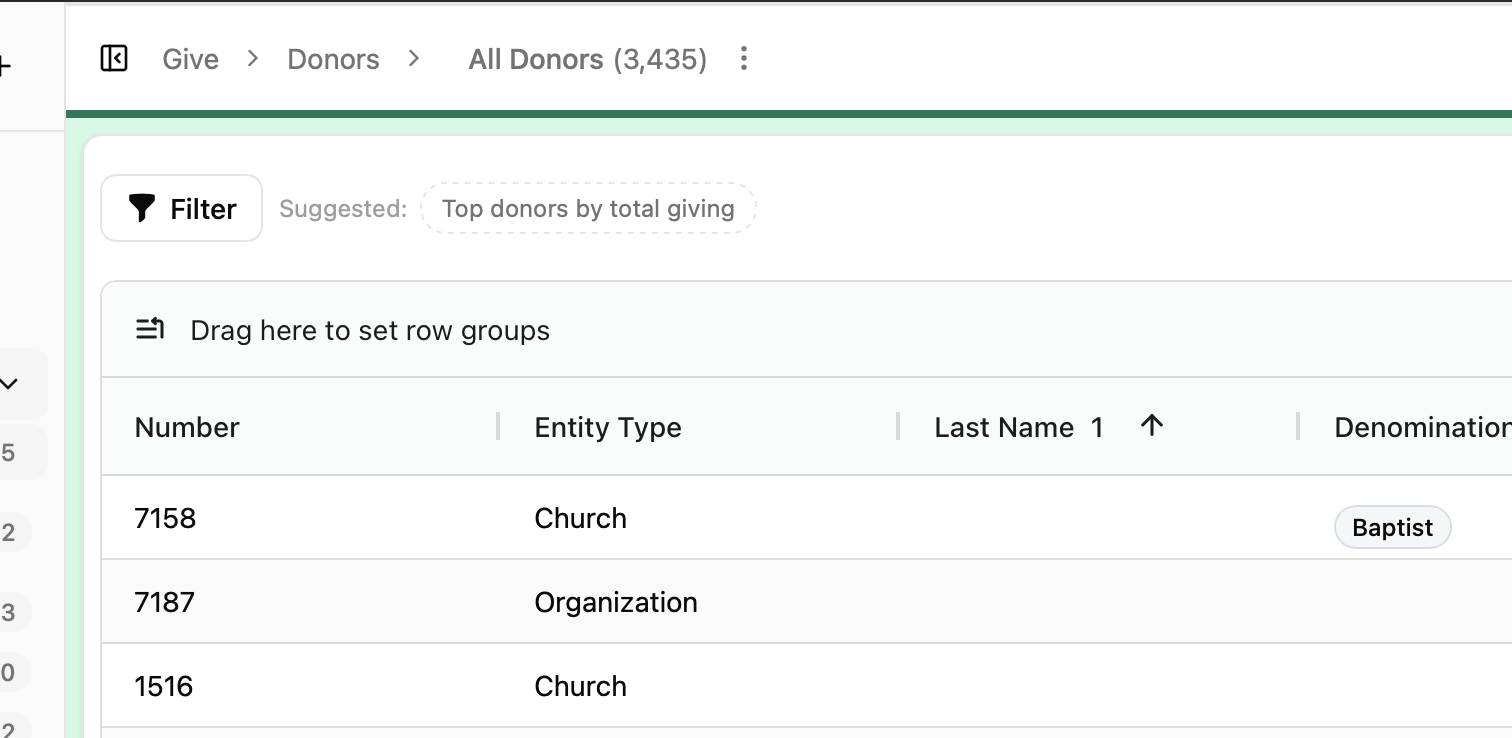
Open Give → Donors, click Filter, and choose Contributions. Under Value aggregations, pick Total contributions…
Then fill in three things:
Field to sum — Amount
Condition — is in the top
How many records — 10, 25, whatever you need
Add the filter, then expand it to say which contributions count — the Baby Bottles fund, and a date of This year.
You get exactly ten donors: the ten who gave the most to that fund, this year. They're real donor records, so you can mail them, tag them, export them, or save the whole thing as a segment and reopen it next quarter.
Everything about that filter stays editable. Click it again to change the amount to a gift count, swap is in the top for greater than, or ask for 25 instead of 10 — without rebuilding it.
It isn't just donors
The same ranking works anywhere a record has related records worth totalling:
Top volunteers by hours served this year, from time sheets
Top clients by number of visits, or by the assistance they've received
Your most frequent givers, ranked by gift count instead of amount
One thing worth knowing
The ranking is worked out from the contributions you choose, then combined with your other filters. So if you want "the top 10 donors in Pennsylvania", put the state condition inside the contributions filter rather than beside it — otherwise you'll get "whichever of the top 10 donors overall happen to be in Pennsylvania," which is a shorter list than you expect. The filter warns you when a ranking has nothing scoping it.
Also improved recently
Fundraising Events
A shared visual editor for event emails, so the whole team works from one design instead of separate copies.
Draft and publish event pages with live ticket widgets.
Collect optional seating requests and attendee phone numbers at checkout.
Printable tickets are preserved for attendees who don't use a digital wallet, and attendee links now resolve correctly.
Event page previews honour image borders and logo alignment.
Live edits to an event email are no longer lost while a response is pending.
Care and client records
Legacy notes now file onto the right CPC case automatically.
Answers recorded in the previous CoolFocus for vape use, birth control type and STD type now appear where you'd expect them.
Documents
Generated PDFs honour the text colours and inline formatting you set in the template, instead of quietly flattening them.
Under the hood
A database change that had been blocking deployments now runs outside the deploy path, so improvements reach you sooner.
More resilient handling of database lock contention under load.
The green selected state is back on checkboxes across the app.
Tell us what you'd rank
This started with a real question from a center director who wanted top donors for one fund, for one year. If there's a list you keep building by hand, reply to support and tell us — that's usually the fastest route to it becoming a feature.
A New Home for Your Day in CoolFocus
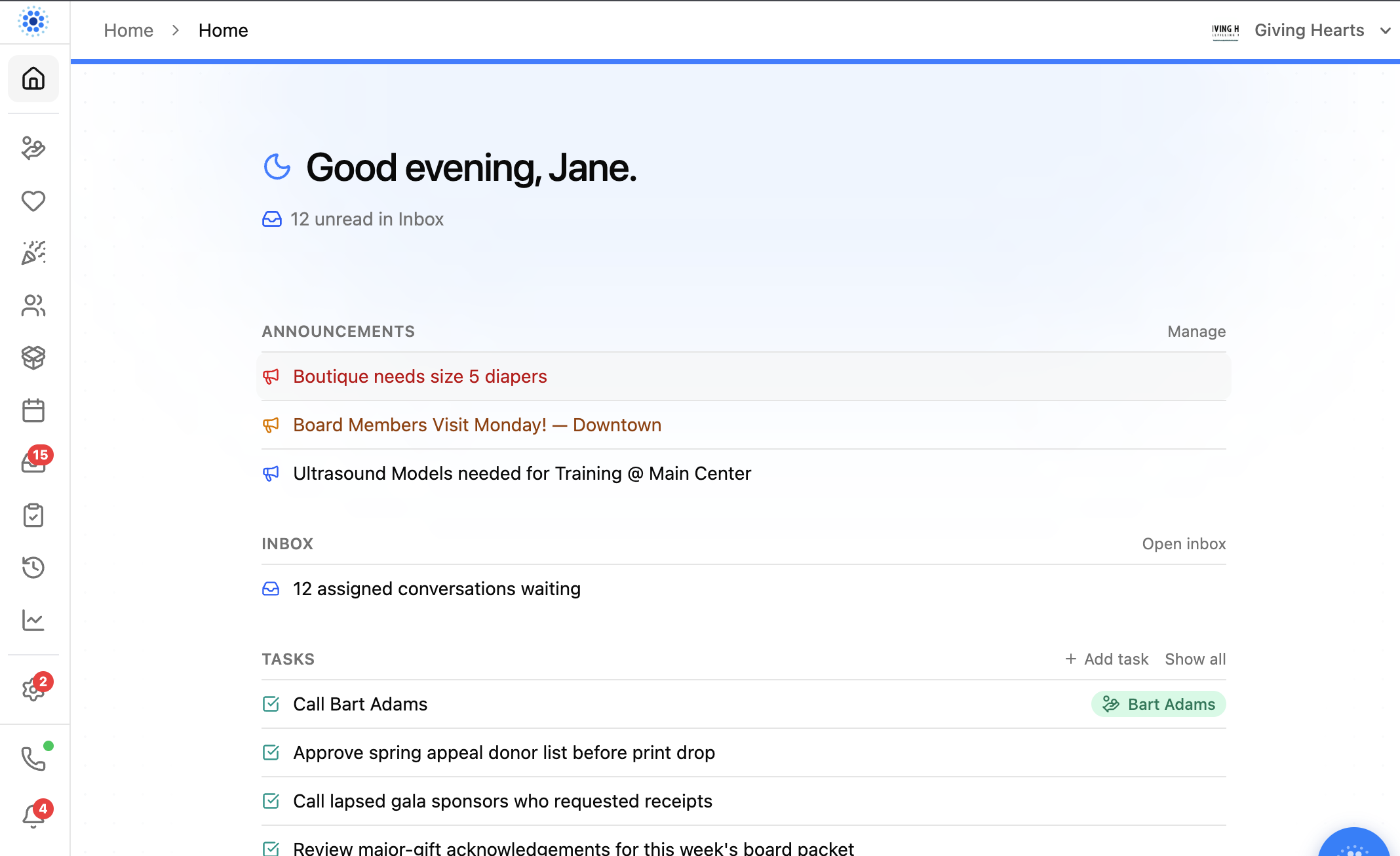
The Home dashboard has been redesigned around a simple question: what needs your attention right now?
Instead of making you hunt across several areas of CoolFocus, Home now brings the day’s most useful information into one clean, focused view.
Built for both Pregnancy Centers and Love INC
Pregnancy Centers and Love INC ministries do important—but different—work. Home should reflect that instead of assuming every organization needs the same clinical and scheduling workflow.
The new dashboard adapts to the modules and tools available to your organization:
Pregnancy Centers can see today’s appointments and charts or scans awaiting review when Scheduler and Approvals are part of their workflow.
Love INC ministries get a more focused Home experience without clinical reviews, scans, and other pregnancy-center-specific sections adding noise.
Every organization sees the announcements, Inbox work, tasks, and recent activity that are relevant to its team.
The goal is not to give everyone the same dashboard. It is to give each organization a useful starting point for the work it actually does.
Your day, at a glance
When you open Home, you’ll see a personalized greeting and a grouped Now list built from the work that is relevant to your organization:
Announcements your team needs to see
Today’s appointments and quick access to the calendar, when scheduling is enabled
Inbox conversations waiting for attention
Open tasks, including links to the people and records connected to them
Charts or scans awaiting review, when approvals are enabled
Recent activity across your organization
Groups only appear when they are available to your organization, so the page stays useful instead of turning into a graveyard of empty cards.
Faster paths to the work
Home is more than a summary. Each section includes direct actions that help you keep moving:
Open the Inbox or calendar
Add a task or view the full task list
Manage announcements
Jump directly to a linked client, donor, or other record
Open work that is waiting for review
Announcements now open with their full details, and tasks can be handled without losing the context of the Home page.
Clearer, calmer, and easier to scan
The new layout uses one centered reading column, clearer section labels, and more consistent spacing and color. Loading and error states are also more honest: CoolFocus shows when information is still loading or could not be retrieved instead of quietly pretending there is nothing to do.
The result is a Home page that works more like a daily workbench: open CoolFocus, see what matters, and move directly into the next task.
Also improved this week
Alongside the new Home dashboard, we shipped several other customer-facing improvements:
Scheduler: assign staff while creating an appointment, mark an entire position unavailable for a date range, and configure automatic reminders by appointment type.
Inbox and messaging: clearer shared-Inbox unread counts, a Mark as unread action, and staff notifications when an email such as a donor receipt bounces.
Visits and charts: a streamlined visit workspace, a built-in Health History chart, and the ability to send forms from client and case records.
Exports and reports: CSV and Excel export for activity timelines, more reliable filtered segment exports, and accuracy improvements for Babies Due, Babies Born, Giving Trends, Center Overview, and Gifts by Source.
Giving and templates: delete saved donor payment methods, see who approved recurring charges in recent history, add real subject lines to email templates, and use request descriptions as merge fields.
How to try it
Open Home from the CoolFocus sidebar. Start with the first section that needs attention, then use the links and actions beside each group to move directly into the work.
Have feedback on what should appear on Home? Contact support and tell us what would make the start of your day easier.
Introducing CoolPay Hub — more visibility and control over recurring gifts
What's new
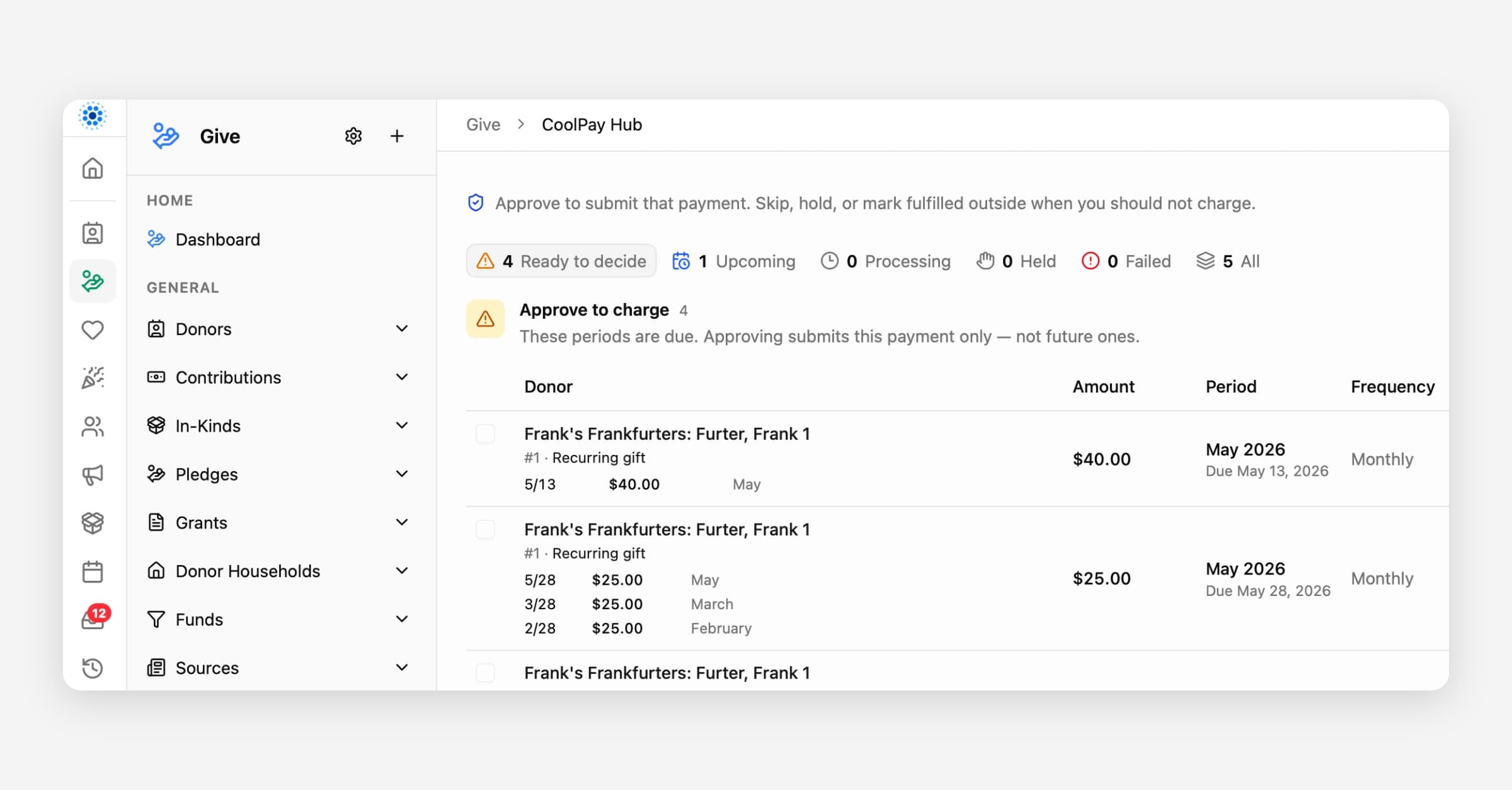
CoolPay Hub is your new home for recurring gifts that are ready for a decision.
Find it in CoolFocus under Give → CoolPay Hub.
We built Hub so your team can see what is pending, understand each charge before it goes out, and stay in control — without guessing what the system might do next.
Why we built it
Recurring gifts should never feel like a black box. CoolPay Hub puts the next charge in front of you with the context you need, then waits for an explicit decision from someone on your team who has permission.
If you take no action, no payment is submitted.
That is by design. Hub gives you insight into what is waiting and control over when money actually moves.
What you can see
In CoolPay Hub you get a clear queue of recurring billing periods, including:
How many gifts are ready to decide, coming up, processing, held, or failed
Amount, frequency, covered period, and due date for each item
Recent payments on that gift so you can spot catch-up or duplicate risk before you approve
Failed attempts with enough detail to choose approve again, skip, or hold — instead of retrying blindly
Use the view tabs (Ready to decide, Upcoming, Processing, Held, Failed, All) so you are not scrolling through everything at once.
What you can control
Approve a single payment when you are ready for it to go out
Select eligible clean, due payments and approve them together when the list is straightforward
Review riskier or historical items one at a time so they never slip into a bulk action by accident
Keep upcoming periods visible (up to about 30 days ahead) without being able to charge them early
Approval uses your existing Recurring Contributions → Update permission. Only authorized staff can submit payments from Hub.
How this changes day-to-day CoolPay
CoolPay Hub is the path forward for recurring charges that need a human decision. Instead of waiting for surprises or piecing together status from multiple screens, your team works from one queue:
Open Give → CoolPay Hub
Start on Ready to decide
Review the evidence on each row (or open the detail dialog)
Approve what should go out — or leave it pending until you are ready
Pending items stay pending until someone decides. Nothing auto-submits from this queue.
Tips for a smooth first week
Make sure at least one active staff user has Recurring Contributions Update and can sign in to CoolFocus
Check Hub on a regular cadence (daily is ideal while you learn the queue)
Use Select eligible for clean current-period gifts; use the row Approve flow when a gift needs individual attention
Confirm recent payment history before approving anything that looks like a catch-up month
Help
Step-by-step staff guide: CoolPay Hub: Reviewing and Approving Recurring Payments
Questions or something unexpected in the queue? Reply to support and we will help you walk through it.
Staff & Time Sheets: one place for the people who serve
The heart of every organization
Staff and volunteers are the heart of what makes an organization work. They greet guests, staff the front desk, mentor families, run events, and show up when it matters. In CoolFocus, those people have always lived in the same Serve records — we are making the language match that reality.
What changed in Serve
We are combining the concept so you are not hunting for “volunteer hours” when you mean staff time cards (or the other way around).
Was | Now |
|---|---|
Volunteers | Staff |
Volunteer Services | Time Sheets |
Volunteer Service Batches | Time Sheet Batches |
Same people. Same hours. Clearer names — whether your team says staff, volunteers, or both.
Why this matters
One roster for everyone who serves: employees, volunteers, interns, and team members.
Time Sheets make hour tracking obvious for payroll-minded orgs and volunteer coordinators.
Batch Entry still works the same way — it now lives under Time Sheet Batches for rapid hour entry.
Scheduler Positions and Serve Staff stay aligned: the same people you schedule are the people whose hours you log.
What you need to do
Nothing special for day-to-day use. Open Serve → Staff and Serve → Time Sheets. Old bookmarks to Volunteers / Volunteer Services redirect to the new names.
If your training docs still say “Volunteer Services,” update them to Time Sheets — your help center articles have already been refreshed.
Looking ahead
This rename is part of a longer alignment: Staff and Volunteers are the same people in CoolFocus. Clearer language today sets us up for stronger attendance, shift, and reporting experiences tomorrow — without a second parallel “employee hours” system.
Thank you for everything your people do. Serve is built for them.
Client portal login just got easier
We’ve made client portal sign-in simpler, safer, and more realistic for the people you serve.
Clients now begin their portal login by entering their phone number. They’ll receive a text code, then confirm their birthdate before getting access to their portal.
This change helps because real life does not always fit neatly into one-person, one-phone. Some clients use a shared family phone. Some may be experiencing homelessness or housing instability and may not have a personal cell phone. Others may share a phone with a friend, partner, shelter contact, or another person who is also a client at your center.
With the new phone-first flow, shared phone numbers no longer automatically block everyone from logging in. The birthdate step helps the portal match the right person to the right record before any private information is shown.
It also reduces frustrating login failures caused by nicknames, misspelled names, name changes, or small data-entry differences.
Why this is a win
Clients get a login experience that better matches real life. Staff get fewer “I can’t get in” calls. And centers can support shared-phone situations more safely, without forcing every client to have their own personal cell phone.
Staff tip
Keeping phone numbers and birthdates up to date will help clients sign in smoothly.
New Importer: Move Data Into CoolFocus With Confidence
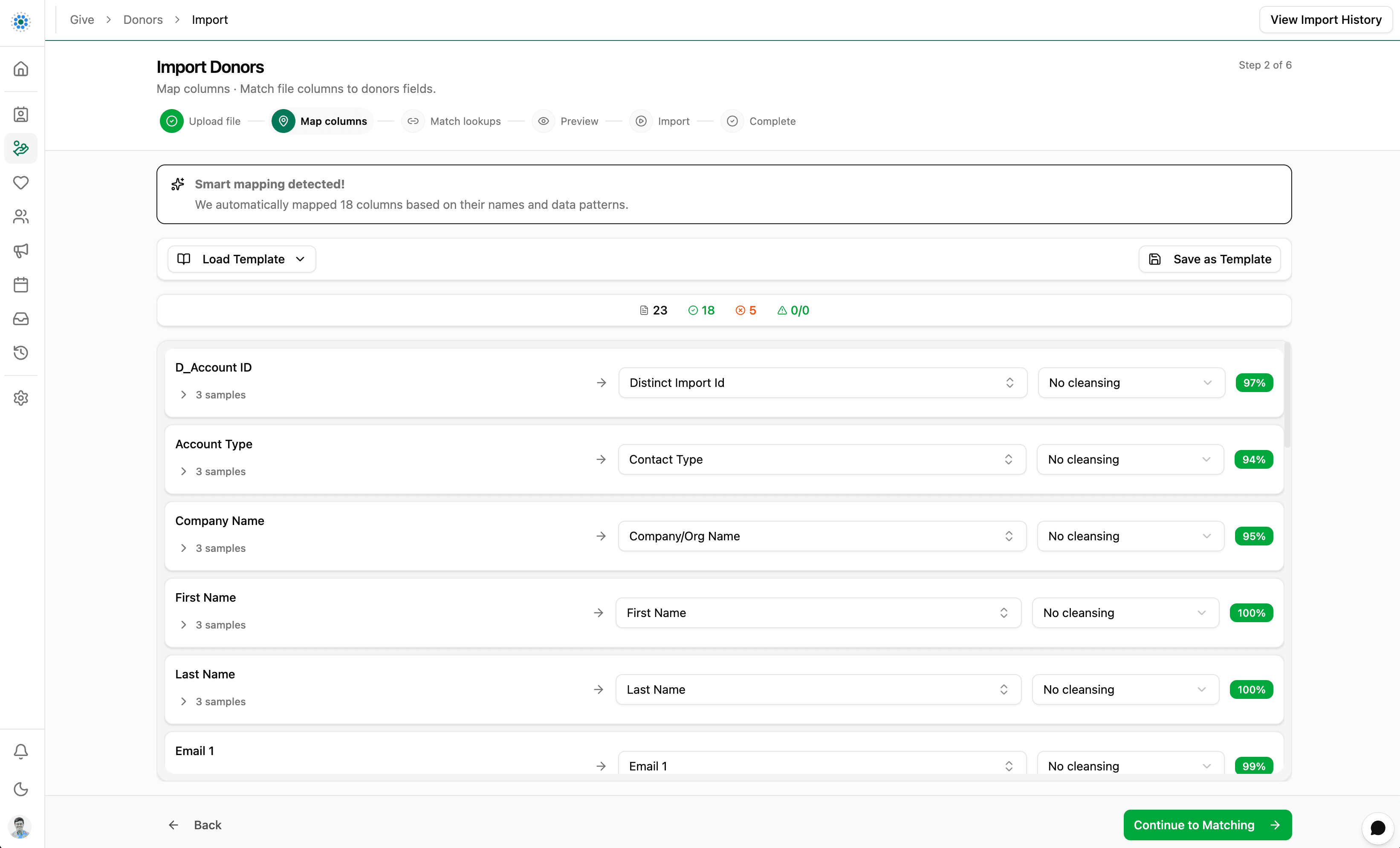
Moving data into a new system is one of the highest-trust moments in a rollout. The new CoolFocus Importer is designed to make that moment calmer.
Start with a spreadsheet from your old system, choose whether you are creating new records or updating existing records, and tell CoolFocus where the data came from. The Importer walks you through mapping columns, matching lookup values, and previewing every row before anything is saved.
If something needs attention, you can edit rows in preview, skip rows intentionally, or download an issue report and come back when the data is ready. After the import runs, Import History gives your team a clear record of what happened: the original file, field mappings, imported rows, skipped rows, failed rows, error reports, and re-run options.
Whether you are migrating donor records, cleaning up contacts, or preparing phased data moves, the Importer gives you a repeatable process instead of a one-off spreadsheet handoff.
What is new
Guided import workflow: Upload file, map columns, match lookups, preview, import, and review results.
Create and update modes: Create new records or update existing records when your file includes
IdorDistinctImportId.Source system tracking: Record where data came from so supported related imports can match back to the right source records.
Smart column mapping: Suggested mappings, required-field progress, sample values, and cleansing options.
Mapping templates: Save and reuse field mappings for repeat imports from the same file format.
Lookup matching: Review unmatched lookup values, map them to existing records, or create new values when the lookup type and your permissions allow it.
Preview before import: See valid, invalid, edited, matched existing, and skipped rows before the import runs.
Fix-in-preview tools: Edit cell values, skip rows, and download issue reports.
Background processing: Watch queued and processing imports with live row counts.
Import history: Review original files, mappings, imported rows, skipped rows, errors, and re-run failed rows.
Why it matters
Less manual cleanup before data reaches CoolFocus.
More visibility into what will be imported before it is saved.
Reusable templates for teams that import from the same source more than once.
Better migration confidence through source system IDs, preview validation, and history.
How to try it
Open a record list where Import is enabled.
Choose Actions.
Choose Import.
Upload a CSV, XLSX, or XLS file.
Follow the steps: Map columns, Match lookups, Preview, and Import.
Best first import
Start with a small sample file of 25 to 50 rows. Include common rows, rows with blanks, rows with lookup values, and at least one row that should match an existing record. Once the preview and results look right, save the mapping template and move on to the full file.
New help center resources
A new Migrating Data help category is staged with articles for planning and running successful imports:
Migrating Data Into CoolFocus
Prepare for a Data Migration
Prepare Your Import File
Import Your Data
Fix Import Issues and Re-Run Rows
Importer Best Practices
Look for Actions > Import on supported record lists when your team is ready to start.
Inbox and CoolPay Polish
What improved
Inbox now shows the SMS phone number in the contact panel, handles deep links more reliably, and closes conversations faster in bulk.
CoolPay staff notifications now follow notification preferences, and donor portal URL setup includes clearer path guidance.
Donation form setup has clearer helper text and more reliable preset amount handling.
Fixes and polish
BrightCourse searches and client lookups are more resilient.
Saved filters with invalid values now return an empty grid instead of an error.
Reminder opt-outs and conversation phone matching were tightened so messages land with the right record.
Scheduler, Messaging, and Client Care Updates
What improved
Scheduler received more practical appointment setup controls, staff filters, calendar feed filters, and clearer coverage previews.
Appointment reminders now use the center's local time and display more clearly in Inbox and staff workflows.
Client care pages got cleaner headers, better visit flow labels, and more reliable case detail saving.
Giving and recurring contribution views now show clearer missed-payment actions, deductible amounts, and statement resend options.
Fixes and polish
Inbox conversation links, reminder reply loading, and multi-window behavior are more reliable.
Household address copy behavior and dependent client creation were tightened.
Scheduler staffing now recognizes volunteer-marked people when building appointment coverage.