
WayCool changelog
New Importer: Move Data Into CoolFocus With Confidence
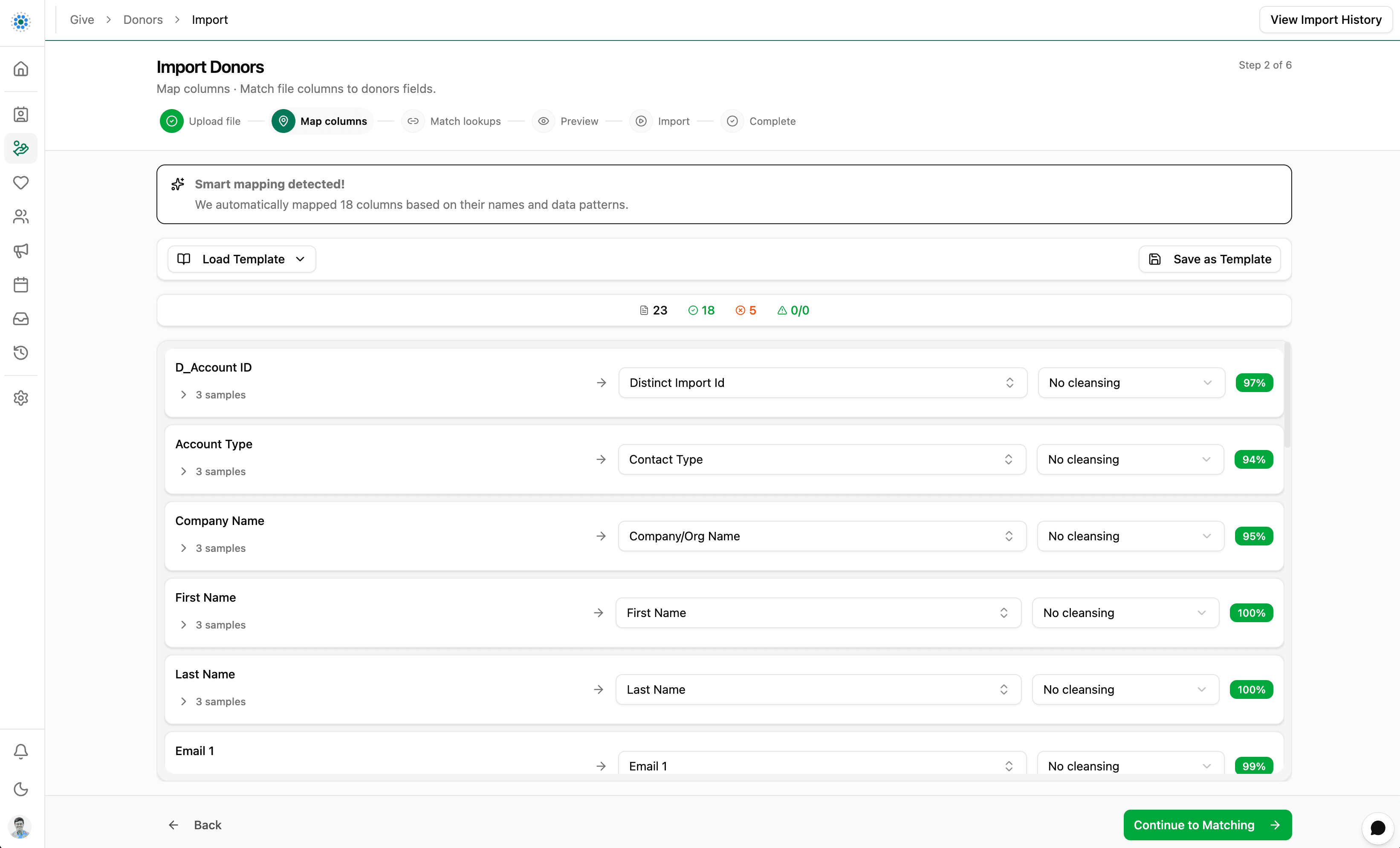
Moving data into a new system is one of the highest-trust moments in a rollout. The new CoolFocus Importer is designed to make that moment calmer.
Start with a spreadsheet from your old system, choose whether you are creating new records or updating existing records, and tell CoolFocus where the data came from. The Importer walks you through mapping columns, matching lookup values, and previewing every row before anything is saved.
If something needs attention, you can edit rows in preview, skip rows intentionally, or download an issue report and come back when the data is ready. After the import runs, Import History gives your team a clear record of what happened: the original file, field mappings, imported rows, skipped rows, failed rows, error reports, and re-run options.
Whether you are migrating donor records, cleaning up contacts, or preparing phased data moves, the Importer gives you a repeatable process instead of a one-off spreadsheet handoff.
What is new
Guided import workflow: Upload file, map columns, match lookups, preview, import, and review results.
Create and update modes: Create new records or update existing records when your file includes
IdorDistinctImportId.Source system tracking: Record where data came from so supported related imports can match back to the right source records.
Smart column mapping: Suggested mappings, required-field progress, sample values, and cleansing options.
Mapping templates: Save and reuse field mappings for repeat imports from the same file format.
Lookup matching: Review unmatched lookup values, map them to existing records, or create new values when the lookup type and your permissions allow it.
Preview before import: See valid, invalid, edited, matched existing, and skipped rows before the import runs.
Fix-in-preview tools: Edit cell values, skip rows, and download issue reports.
Background processing: Watch queued and processing imports with live row counts.
Import history: Review original files, mappings, imported rows, skipped rows, errors, and re-run failed rows.
Why it matters
Less manual cleanup before data reaches CoolFocus.
More visibility into what will be imported before it is saved.
Reusable templates for teams that import from the same source more than once.
Better migration confidence through source system IDs, preview validation, and history.
How to try it
Open a record list where Import is enabled.
Choose Actions.
Choose Import.
Upload a CSV, XLSX, or XLS file.
Follow the steps: Map columns, Match lookups, Preview, and Import.
Best first import
Start with a small sample file of 25 to 50 rows. Include common rows, rows with blanks, rows with lookup values, and at least one row that should match an existing record. Once the preview and results look right, save the mapping template and move on to the full file.
New help center resources
A new Migrating Data help category is staged with articles for planning and running successful imports:
Migrating Data Into CoolFocus
Prepare for a Data Migration
Prepare Your Import File
Import Your Data
Fix Import Issues and Re-Run Rows
Importer Best Practices
Look for Actions > Import on supported record lists when your team is ready to start.