
Staff & Volunteers
Serve Staff and Volunteers lists: involvement flags, training, paperwork columns, combined pickers, and when to mark someone Staff vs Volunteer.
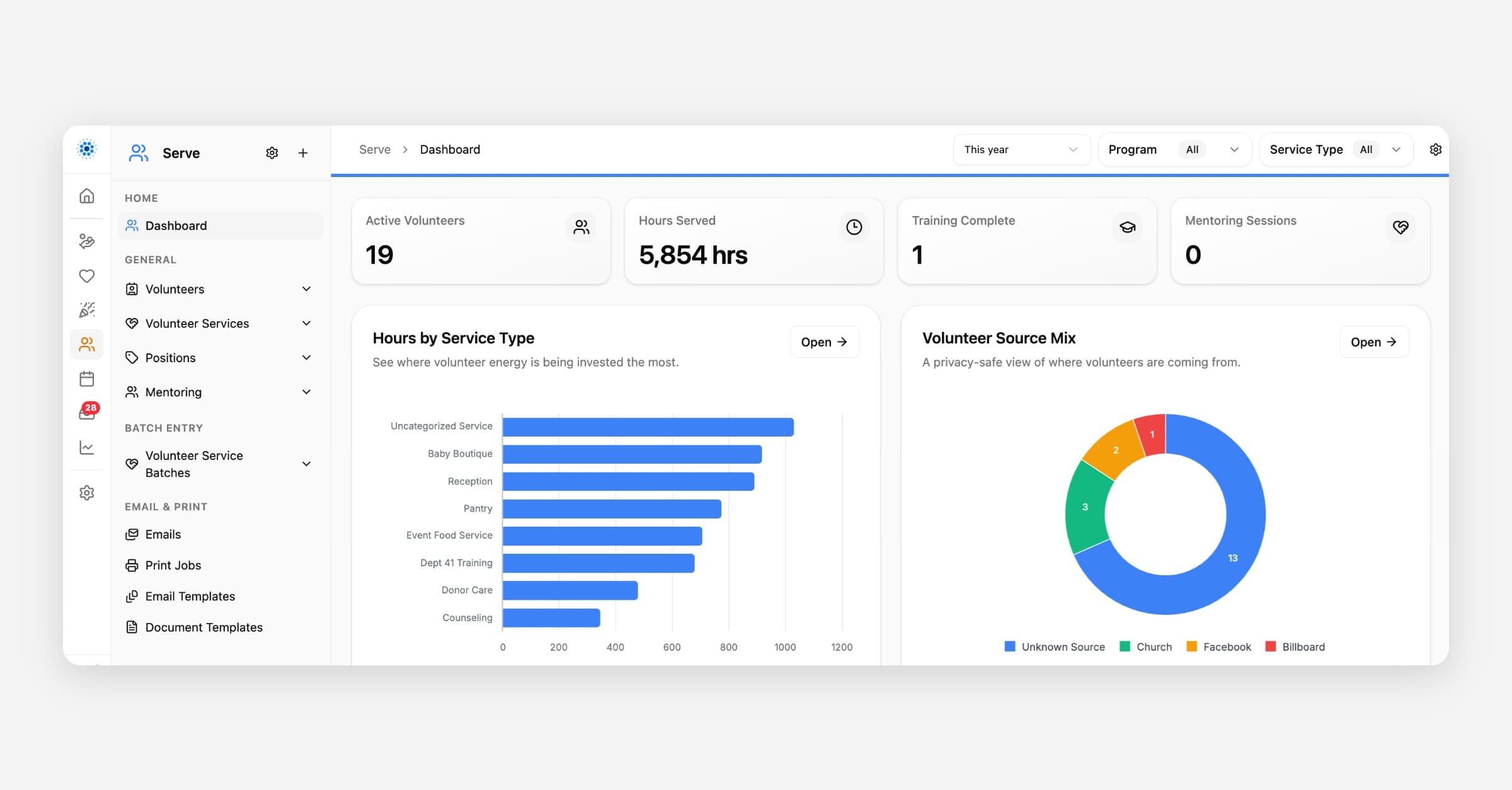
Serve keeps two person lists for the people who serve your organization:
• Serve → Volunteers — community members and others who serve as volunteers
• Serve → Staff — paid staff and employees
They are separate lists on purpose, so menus, reports, and pickers can tell them apart. Behind the scenes, both lists point at the same kind of person record. Use the Volunteer and Staff involvement checkboxes on that record to choose which list(s) someone appears on. Staff and Volunteer are checkboxes on that record, not its entity type: CoolFocus separately tracks a system-set entity type (Person, Organization, Church, or Gap Ministry) that controls the record's layout, and it does not change when you check or uncheck Staff or Volunteer. See How to Change a Person, Organization, or Church Record Type to view or change it.
A person can be Volunteer only, Staff only, or both. Checking both flags puts them on both lists.
Where to open each list
1. Open the Serve module.
2. In the left menu, choose Volunteers or Staff.
3. Open a person from the list to see their Serve record (contact details, time sheets, training, notes, and more).
When you add someone new, pick Volunteers or Staff based on whether they are a paid employee, not only on how often they serve. If they should appear on both lists, turn on both involvement flags after you create the record.
Coming from an older version of CoolFocus?
If your organization moved to CoolFocus 5 from an earlier version, your staff are not held in a separate imported staff list. Each person who used to be "staff" is a regular person record with the Staff flag (and the Volunteer flag too, if they also served as a volunteer).
1. Go to Serve → Staff.
2. Open the person's record.
3. Check Details to confirm the Staff and Volunteer checkboxes are set the way you expect.
The same record can also carry a Donor flag if that person gives to your organization, all on one record, so a staff member's giving history, volunteer hours, and staff details live in the same place.
If someone who was staff in your old system is not on either list, no record was created for them during migration. Add them directly in CoolFocus 5: create the person, then turn on Staff (and Volunteer, if it applies) on Details.
Staff vs Volunteer — which flag to use
• Volunteer — They serve as a volunteer. Their hours should count toward volunteer totals (for example Active Volunteers on the Serve dashboard and volunteer-hour reports).
• Staff — They are a paid staff member or employee. Hours on people marked Staff are left out of volunteer-hour totals on reports such as Love INC Annual and Quarterly reports, even if they also volunteer.
• Both — They are on staff and still serve as a volunteer, and you want them on both lists. Be careful with national/volunteer hour reports: the Staff flag is what excludes hours from volunteer totals.
Change Volunteer to Staff (or add Staff)
You do not create a second person.
1. Open the person (from Serve → Volunteers, Serve → Staff, or their contact record).
2. On Details / Involvement, check Staff.
3. Uncheck Volunteer only if they should leave the Volunteers list. Leave both checked if they still volunteer.
4. Save.
Do not create a second "staff record" for the same person.
Involvement chips on the contact header
On a person's contact record, Staff has its own chip with an ID-card icon, separate from the Volunteer chip. Click a chip to open that Serve view of the person. Someone marked as both shows both chips. See Contacts and Organizations for the full list of involvement chips.
What you can track
Depending on your setup, a staff or volunteer record may include:
• Contact information and profile photo
• Time sheet history
• Roles and positions
• Training and event participation
• Background checks and notes
• Volunteer paperwork fields (application, references, statement of faith, confidentiality agreement, and their dates)
You can add a photo from the camera icon on the initials circle. Full steps: Adding Profile Photos to People Records.
Track training and event participation
Use Event & Training Participation on a staff or volunteer record to log trainings, orientations, or events someone attended.
1. Open Serve → Staff or Serve → Volunteers and open the person.
2. Expand Event & Training Participation.
3. Click Add, choose a Type (from Manage Lists → Event Participation Type), and set the Event Date.
Repeat for each training or event you want on file.
To mark someone as fully trained for dashboard reporting, use Training Complete and set Training Complete Date to the day they finished. Both fields exist on Staff and Volunteer records. The Serve dashboard Training Complete card uses this checkbox.
Columns on the Volunteers list
On Serve → Volunteers, you can show:
• Training Complete and Training Complete Date
• Volunteer Application, Volunteer References, Statement of Faith, and Confidentiality Agreement (and their dates)
Turn columns on with the Columns button above the list. Steps: Adding and Customizing Columns in a List.
For a full export of training and paperwork across volunteers, use the Volunteer Training & Documents report from Reports.
How staff and volunteers connect to other work
• Time Sheets, Positions, and Mentoring use a combined Staff / Volunteer picker. You do not need to know which list someone is on before you log hours or assign a mentor. Open the mentoring list from Serve → Mentoring (not under Outreach).
• Positions also feed Scheduler (who is qualified for appointment types). That is separate from Serve time sheets — Serve tracks people and hours; it does not run a volunteer shift calendar. First-time role setup: Positions. Hours: Time Sheets.
• A Staff or Volunteer person who is still assigned as staff on an appointment type cannot be deleted until you remove that assignment under Scheduler → Scheduler Settings → Types. See Deleting a Record.
If someone is missing from a list
1. Open their person record and check the Volunteer and Staff involvement flags.
2. Confirm you are looking at the right menu (Serve → Volunteers vs Serve → Staff). An empty Staff list is normal if nobody is flagged as Staff yet — look under Volunteers for community helpers.
3. Clear filter chips on the list and try All if a saved segment looks empty.
Staff and Volunteers used to be one combined list and were later split into two. Older saved segments may still sit under the wrong list (for example under Staff with zero people). If a segment you expect under Volunteers is missing or stuck under Staff empty, contact CoolFocus support so we can move it.
Mark a volunteer inactive
Don't delete the person record just because someone stopped volunteering. Deleting removes them from the list, and if history is attached elsewhere it can also be blocked - see Deleting a Record. Instead, clear their Volunteer flag so they drop off the active list while their history stays on file.
What that looks like depends on how your organization's records are set up.
The Volunteer checkbox won't clear
If unchecking Volunteer does nothing or CoolFocus blocks the save, the person is probably still linked to scheduling work. Clear those links first:
Open Serve → Positions and check whether the person appears under Qualified Team Members on any position. If they do, open that position and remove them. This also takes them out of the picker used to assign volunteers when scheduling.
Check whether the person is assigned as staff on an appointment type. Open Scheduler → Scheduler Settings → Types, open the appointment type, and remove them from its staffing under Scheduling Rules.
Return to the person's record and uncheck Volunteer, then save.
The Volunteer checkbox is greyed out
On records that use Involvement toggles (Client, Donor, Volunteer, Staff, and any others your organization uses - see Involvement Flags: Client, Donor, Volunteer, and Staff), CoolFocus always keeps at least one involvement turned on for a record. If Volunteer is the only involvement checked, the checkbox greys out because turning it off would leave the record with no involvement at all.
To clear it:
Turn on another involvement that fits the person, such as Donor or Contact, and save.
Come back to the record and uncheck Volunteer.
Save again.
Deactivating several volunteers at once
To update a group of volunteers instead of one at a time, use a segment and a batch action rather than opening each record:
Open Serve → Volunteers and filter down to the people you want to deactivate.
Save the filter as a segment. See Saving & Sharing Segments.
From the segment's actions menu, choose Batch Update and apply the change across every matching record.
Batch Update is only available where your user group has permission for it.
Best practice
• Keep both lists current so coordinators know who is available and how they have served.
• Anyone whose hours should count as volunteer service needs the Volunteer flag on.
• Only mark true paid staff as Staff, so volunteer-hour reports stay accurate.
• Prefer one person record with the right flags over duplicate people.
• To take someone off active volunteer service, clear the Volunteer flag - don't delete their record.
Related
• Staff & Time Sheets Overview
• How to Create a Time Sheet Batch
• Staff Positions and Work Schedules
• Adding and Customizing Columns in a List