
Donation Forms & Next Steps for CoolPay Onboarding
How to create donation forms for the Donate button(s) on your website, or QR codes for your fundraising event materials. Describes next steps after new CoolPay onboarding.
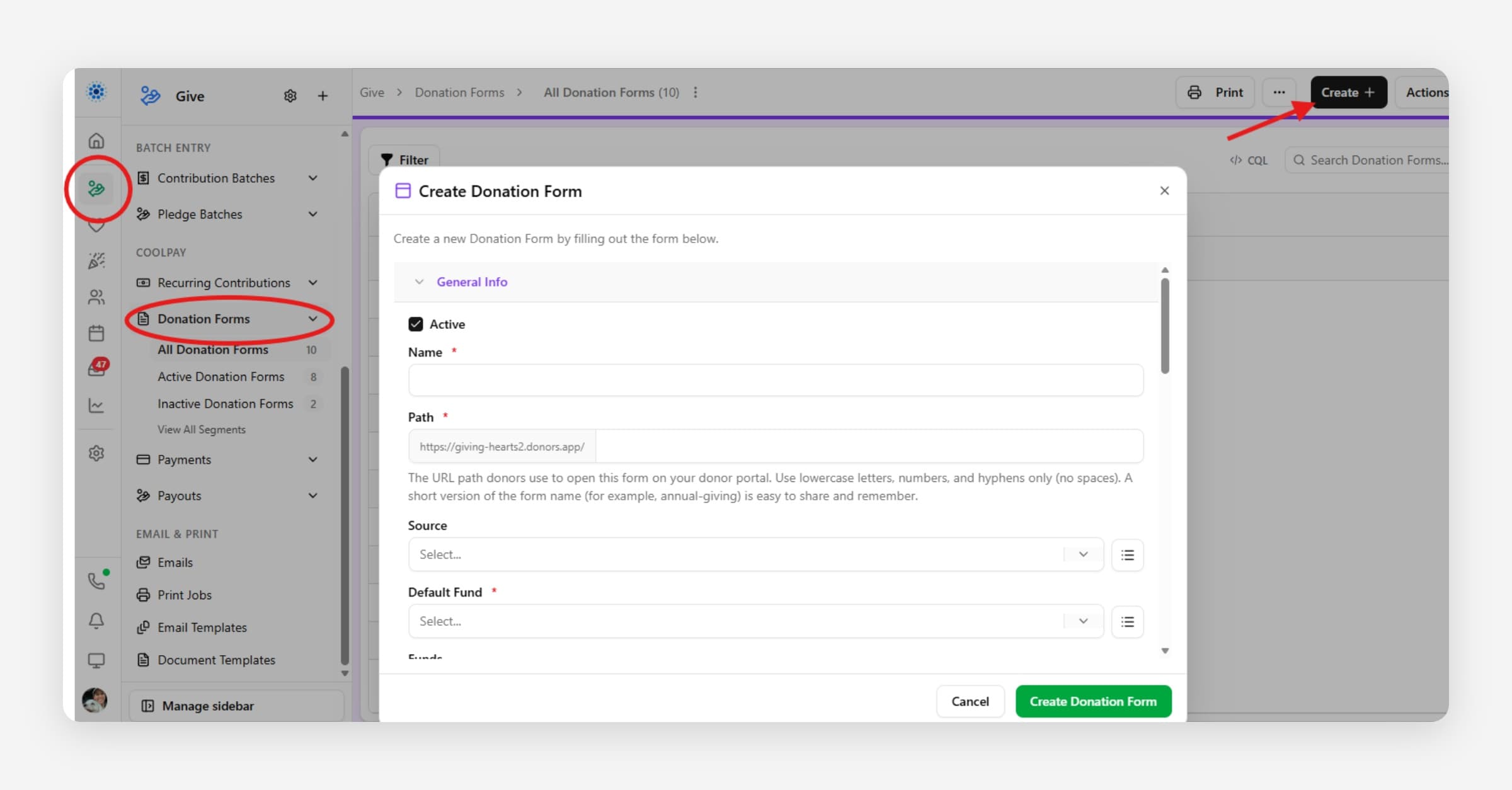
A CoolPay donation form is the setup record for a public online giving page. It controls what donors see, which options they can choose, and how successful online gifts flow back into CoolFocus.
1. Click on the Giving module icon.
2. Under the Giving menu options, scroll to the CoolPay section and select Donation Forms.
3. Click the black Create+ button in the top right corner and select Create Donation Form.
4. Check the Active box. (De-select the Active box to make any formerly used donation form Inactive.)
NAME
Enter the Name of the Donation Form. Donors see this name as the title at the top of the donation page, so use something they will recognize, such as "Save the Bees Appeal" rather than an internal reference number.
PATH
Enter a text value for the Path, which will be used to generate the URL (web address) for this specific donation form.
For example: If you enter "donate-now" as the Path, and the name of your organization is Giving Hearts, then the URL to be generated will be giving-hearts.donors.app/donate-now (where giving-hearts.donors.app/ is the donor portal, and the "donate-now" directs the donor or the QR code to that specific donation form).
As you type the Name of a new Donation Form, CoolFocus automatically suggests a matching Path for you (letters, numbers, and hyphens only) so the form has a valid web address by default. You can still type your own Path at any time; once you edit it, CoolFocus stops overwriting it with a suggestion based on the Name.
If the Path you enter (or the one suggested from the Name) is already used by another donation form for your organization, CoolFocus automatically appends a number (for example, "donate-now-1") to keep the web address unique. If you paste a full donor portal URL into the Path field, CoolFocus will automatically strip the domain and portal name so only the page path is saved.
SOURCE
A Source answers the question, "Why is a donor giving?" or "How did they hear about us or this Fund?" Examples may be a Walk-a-thon, Banquet, billboard ad, etc. This field is optional and is not seen by the donor. Users with Administrator access can manage the Source list.
Select a Default Fund, which will be pre-selected for the donor. A Fund answers the question, "Where will this donation be spent?" or "For what purpose will this donation be used?" Donors can override the default selection if additional Fund options are set up below. Users with Administrator access can manage the Funds list.
Optional, additional Fund(s) for the donor to choose from.
SPONSOR LABEL
A Sponsor is a person or organization participating in a fundraising event by engaging others to give on their behalf. Enter a label in this field that best describes the function of a Sponsor of this event. Examples are Walker, Table Host, Golf Team Leader, or Church. This field is optional.
SPONSOR ROLES
Select the Sponsor Role(s) that you have added to certain donor records that you want to make available for donors to select as a Sponsor FOR THIS SPECIFIC DONATION FORM.
For example, if you add the Role of "Baby Bottle Church" to five church donor records in CoolFocus, then the donor will be able to select a church from that list of five.
Note: Administrators manage the Roles list, and Roles must be added to the relevant donor records to appear in the form's dropdown menu.
GOAL
Optional numeric goal, auto-formatted in U.S. Dollars. Enable Show Goal to display it publicly.
PAYMENT METHODS
A group of checkboxes on the donation form's General Info tab that controls which ways donors can pay on this form:
Credit or Debit Card (on by default for new forms): donors pay with a debit or credit card.
Apple Pay (on by default for new forms): donors pay with Apple Pay.
Google Pay (on by default for new forms): donors pay with Google Pay.
Plaid Bank Verification (off by default): donors connect their bank account by logging in to their bank through Plaid instead of typing in account numbers. This works independently of Manual Bank Account Entry, so you can turn on either one, both, or neither.
Manual Bank Account Entry (off by default): ACH (Automated Clearing House) bank-draft payments, where the donor types in their bank routing and account numbers.
Recurring gifts can only be paid with Credit or Debit Card or Manual Bank Account Entry; Plaid Bank Verification, Apple Pay, and Google Pay are available for one-time gifts only. A form that offers only recurring gifts must have Credit or Debit Card or Manual Bank Account Entry turned on.
Each donation form has its own payment method settings, so turn on ACH (Manual Bank Account Entry) on every form that should accept it.
Review the Risks of ACH Transactions article before enabling bank account payments.
DEFAULT DONATION AMOUNT
Leave this field blank to automatically default the pre-selected giving amount to $50. Otherwise, you can enter another amount to be pre-selected when donors open the page. (The minimum amount is $2)
Donors will always be able to select Other to enter a custom amount.
DEFAULT GIFT FREQUENCY
Leave this field blank for the pre-selected payment frequency to default to "One-Time." Or, you may enter one of the other options to use as a pre-selected default.
PRESET DONATION AMOUNTS
These quick-select payment buttons will allow the donor to select the contribution amount. Leave this field blank to use the default options of $25, $50, $100, $500, and $1,000. Or, you can select +Add Amount to create your own options. Donors can always select Other to enter a custom amount.
A few rules apply when adding your own preset amounts:
The minimum preset amount is $2.
You can't add an amount that's already in the list.
You can add up to 6 preset amounts.
If you remove the preset that's currently set as the default amount, CoolFocus automatically makes the next remaining preset the new default.
Each preset amount can also have an optional impact description, a short line of text that tells the donor what that gift does, for example "$50, Feeds a family for a week." Add a description next to any preset amount when you create it, or edit it later from the same list. As soon as one preset has a description, the donation page shows every preset amount as a card with its description underneath instead of a plain amount button, so it is worth adding one for each amount if you use this feature.
HIDE PRESET AMOUNT BUTTONS
Optional toggle that removes the quick-select amount buttons from the donation page entirely, leaving only the custom amount field for donors to fill in. Your saved preset amounts stay saved and reappear if you turn this off later.
PRIMARY COLOR
Optional. Sets the accent color used for this donation form's selected amount, buttons, and highlights, entered as a hex color code (for example, #10b981). Leave this blank to use your donor portal's default brand color instead.
HIDE COVER TRANSACTION FEES
Optional checkbox in the Donation Options section of the form settings. When enabled, donors will not see the "Increase My Impact" option to add processing fees on top of their gift, and the donation total will always match the amount they choose. Leave this unchecked to keep offering donors the choice to cover transaction fees.
DEFAULT ORGANIZATION COVER TRANSACTION FEES
Controls whether the "Increase My Impact" (cover transaction fees) checkbox starts checked or unchecked when a donor opens this form. This setting only matters when Hide Cover Transaction Fees is not enabled.
Yes: the checkbox starts checked, so donors cover the transaction fees by default unless they opt out.
No: the checkbox starts unchecked, so your organization covers the transaction fees by default unless the donor opts in.
Unknown (the default for existing forms): keeps the original behavior, checked by default.
Unless Hide Cover Transaction Fees is enabled, donors can always change the checkbox themselves before submitting their gift.
Why this matters: Donors who give in a hurry sometimes miss unchecking the box and end up paying an amount they did not expect, which can lead to disputes or chargebacks. If that is a concern for your organization, consider setting Default Organization Cover Transaction Fees to No, or using Hide Cover Transaction Fees to remove the option entirely.
WELCOME MESSAGE
Displayed when the donor opens the donation page.
FEATURED IMAGE
Optional image URL shown at the top of this donation form, on the form page and on its thank-you page. Paste a link to an image hosted elsewhere (for example, an image URL from your website or a file-hosting service). When this field is left blank, your organization's logo is used instead. This image is also used as the preview image when the donation form link is shared on social media. If your organization has no logo on file either, the form shows your organization's initial and name in its place.
CONFIRMATION MESSAGE
Displayed after the donor completes their contribution.
QR CODE
Automatically generated for the form.
Note: If the Path of this donation form is edited or changed in any way, it will also change the QR Code. This is important to know because if you create printed materials to include the QR Code and then decide to change the Path, then the original QR Code will no longer work. The QR Code is determined by the Path you create for it.
Trouble creating a donation form? If you see an error message when clicking Create, check that the Path is unique and only contains letters, numbers, and hyphens. If a Path is left blank, CoolFocus will generate one from the form's Name automatically.
Design your donation page visually
Every donation form has a Design tab right after its Overview tab, and the Overview tab has a Design donation page shortcut. Both open the same visual page designer, where you set the Name, Path, and every other setting described above, so you can see and adjust how the page looks instead of only editing settings fields on a separate tab.
In the designer:
A live preview shows your changes immediately as you make them, before you save anything.
Toggle between Desktop and Mobile to check how the page looks on each.
Side panels group related settings: Story & Messaging, Amounts & Frequency, Goal & Impact Meter, Branding & Appearance, and Attribution & Settings.
Click a section directly in the preview to jump straight to the panel that controls it.
Nothing is saved until you click Save. If you try to leave the designer with unsaved changes, CoolFocus asks you to confirm before discarding them.
If a donor sees "Temporarily Unavailable" instead of a form or the portal home page
Donation form and donor portal pages briefly retry loading data behind the scenes. If a donor sees a "temporarily unavailable" message with an option to try again, this means CoolFocus had a short-lived problem reaching the data needed to show the page, not that the form, link, or portal is broken or missing.
This covers a few related situations:
A specific donation form link. The form's data failed to load in time.
A donor portal's home page. When a donor opens the portal URL with no specific form in the path, CoolFocus looks up the organization's default donation form to redirect to. If that lookup times out or the service is briefly down, the donor sees the retry message instead of being sent to the account page as if no donation form were configured.
A form link that no longer exists. If the requested form comes back not found and the fallback lookup for a default form also times out, the donor sees the retry message rather than being redirected anywhere.
A few things to keep in mind:
This is different from a real "page not found," which only appears when the form's Path (or the portal itself) genuinely does not exist, for example the link was mistyped or the form was deleted.
Donors should simply try again in a moment. No action is needed on your form's setup.
If the message persists after a few tries, first confirm the donation form's Path and Active status are correct, since a genuinely missing or inactive form still shows as not found rather than temporarily unavailable. If everything looks correct, contact support.
No setup is needed for any of this; it happens automatically.
Upload or Update Your Organization's Logo in Settings
Your logo will display on all Donation Forms that do not have their own Featured Image set, as well as in the Donor Portal, so make sure your organization's logo is current.
1. Click the Settings gear icon from the left menu panel.
2. Select Organization Settings.
3. Upload your logo (any aspect ratio; high resolution recommended; max 5MB).
4. Click Save.
Customize the Donor Portal Welcome Message
In addition to the per-donation-form welcome message above, your Donor Portal itself (the site at your donor portal URL) has its own settings, including a welcome message that donors see when they visit or manage their giving.
This welcome message field now uses the same rich text editor used elsewhere in CoolFocus, so you can format it with bold, italics, links, and line breaks instead of plain text only. If your organization had a plain-text welcome message saved before this change, it was converted automatically and any line breaks were preserved.
Set a favicon for your donor portal
The Branding section of your donor portal settings, alongside the primary color, accent color, and theme, also has a Favicon uploader. The favicon is the small icon shown in the browser tab when a donor visits your donor portal or one of its donation forms.
Upload a PNG, JPG, GIF, or WebP image up to 5MB. Remove the uploaded favicon at any time to fall back to the default CoolFocus icon.
If a donor sees "We could not confirm your payment yet"
For a one-time gift, CoolFocus occasionally can't get a fast, clear answer from the payment processor, for example a slow response or a temporary processor error. When that happens, the donor sees a message asking them to check their email or contact your organization before trying again, instead of a card-decline message.
This is not a decline. CoolFocus holds the donor's original request so the same submission cannot create a second, duplicate charge.
The donor should wait for a receipt email or check with your organization before giving again on the same form.
Staff can look up the payment in Give → Payments once the processor confirms the outcome. See Payments and Payouts.
This is different from a declined card, which is a definitive failure and safe to retry right away. An unconfirmed payment needs a moment, or a staff check, before the donor tries again so the gift isn't charged twice.