
"How do I find...?" with Filters
Use Filters to find a specific group of records based on certain criteria. Most of your "reporting" can be done through filters. Save your filters (called a Segment) to create your own report that can continually be used again.
Filters
Every list in CoolFocus—Donors, Clients, Contributions, Contacts, etc—can be filtered to show only the records you are looking for. Filtering is the everyday skill behind answering questions like "who gave this month?" or "which clients have not been seen since spring?" You do it by pointing and clicking, you never have to type anything technical.
You do not need to know computer code. You build a filter by choosing a field, choosing a condition, and typing a value. That's it!
Build a filter in four steps
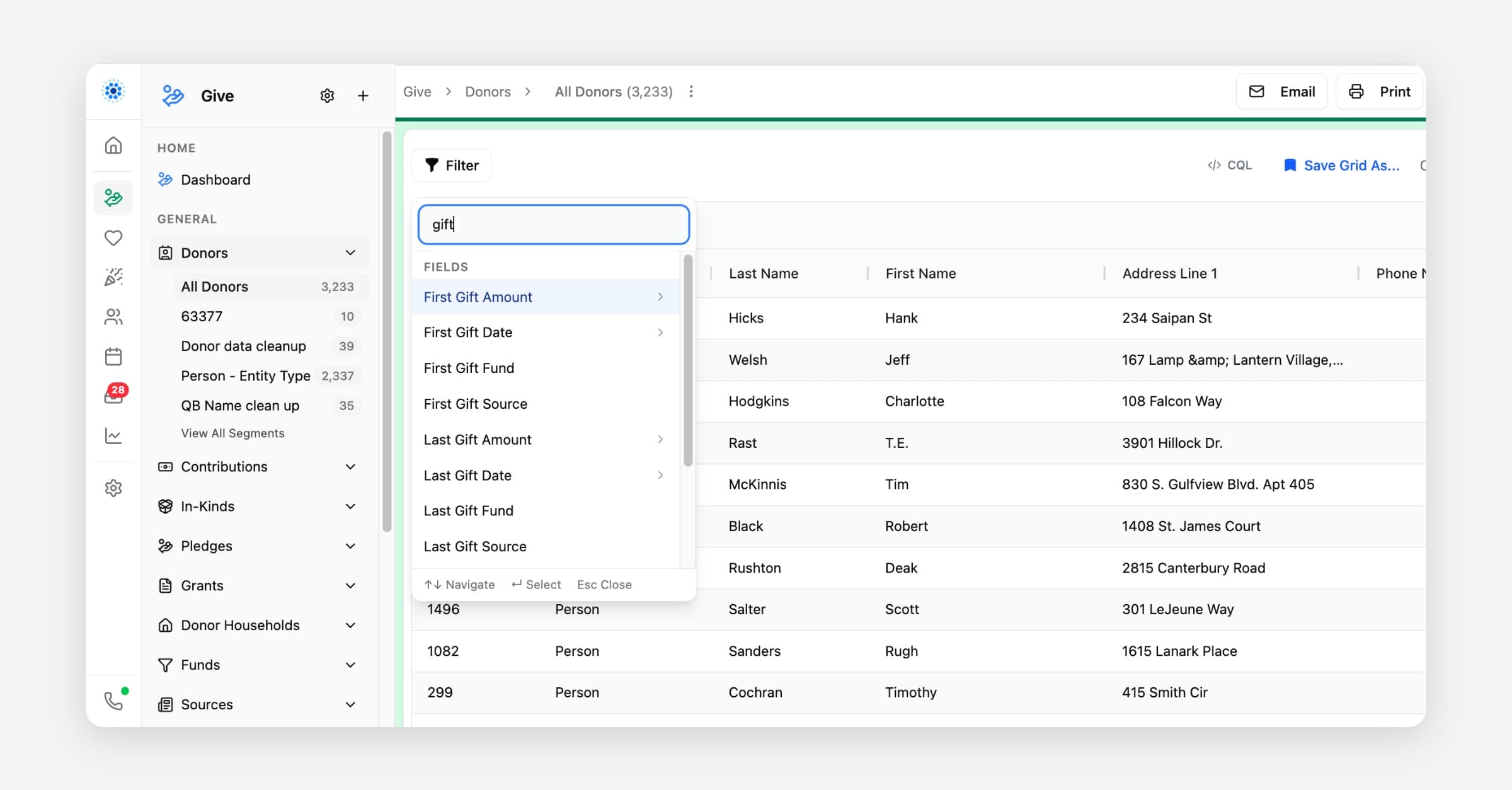
1. Open a list (for example Donors) and click Filter.
2. Pick a field to filter on, start typing to search (for example "Last Gift Date").
3. Choose a condition and enter a value (for example this month).
4. Add more conditions if you need them, and choose match all or match any:
• Match all means a record must meet every condition (this AND that).
• Match any means a record only needs to meet one condition (this OR that).
To clear a filter, remove its conditions or reset the list.
The field picker is organized into groups
When you open the field picker to add a condition, fields are grouped under headings so a long list is easier to scan: Fields (plain fields on the record), Related (other connected records, like Contributions or Visits). On Clients, Visits, and Cases, Charts, Client Forms, and Assessments for your organization's chart, form, and assessment templates. See Filtering by Related Records for how to filter using those chart, form, and assessment fields.
Conditions you can choose
The conditions available depend on the kind of field you selected. Use the labels exactly as they appear in the menu.
• Text fields (name, email, notes): is, is not, contains, does not contain, starts with, ends with, is empty, is not empty.
• Number and currency fields (amount, count): is, is not, greater than, greater than or equal to, less than, less than or equal to, between.
• Date fields (gift date, birthday): last 7 days, this month, last month, this year, last year, year to date, today, tomorrow, this week, next week, next N days, on, before, after, between, year is, month is.
• Yes/No fields (checkboxes): is true, is false.
• Choice fields (status, type): is, is not, is any of.
• Tags: is any of, is not. Available on Contacts, Donors, Clients, Volunteers, Contributions, Cases, Churches, and Organizations. See Tags on Contacts, Donors, Clients, and Other Records.
A few notes: between (number or date) needs a start and an end. The is empty / is not empty options check whether a field has anything in it at all. Date fields also understand friendly ranges like this month and year to date, so you rarely have to type exact dates. On a date field, the picker groups today, tomorrow, this week, next week, and next N days together under Upcoming, so you can find what's coming up instead of only what already happened; next N days asks you for how many days ahead to include.
When you select is any of and choose more than one value, the filter pill shows just the first selected value plus a count, like General Fund +1, instead of listing every value. This keeps the filter bar readable when many values are chosen. Click the pill to see or change the full list of selected values.
Choice-style fields on chart and form templates now offer the same predefined answer choices as the chart or form itself, so you pick a value instead of typing it out. See Filtering by Related Records.
Lapsed Donor (LYBUNT / SYBUNT)
On the Donors list, a Lapsed Donor field lets you quickly find supporters who have gone quiet. Add the condition and choose one option:
• LYBUNT means Last Year But Unfortunately Not This Year. The donor gave last calendar year but has not given yet this calendar year.
• SYBUNT means Some Year But Unfortunately Not This Year. The donor has given in some prior calendar year but has not given this calendar year.
This condition only supports is, since it is a single yes or no style check rather than a range or multi-select. It is only available on the Donors list.
To Be Deleted (cleanup flag)
The Donors, Clients, and Volunteers lists include a To Be Deleted checkbox field, separate from actually deleting a record. Add the condition is true to gather records your team has flagged for cleanup before you review and delete them. See Deleting a Record.
Everyday recipes
• Donors who gave this month means on Donors, filter Last Gift Date → this month.
• Everyone in one town means City → is → the town name.
• Contacts missing an email means Email → is empty.
• Gifts over $250 means on Contributions, filter Amount → greater than → 250.
• Active volunteers only means Volunteer Status → is → Active.
• Records flagged for cleanup means on Donors, Clients, or Volunteers, filter To Be Deleted → is true to find records your team has marked for removal.
• Two things at once means Last Gift Date → this year AND Amount → greater than → 100, with match all selected.
• Donors who lapsed this year means on Donors, filter Lapsed Donor → is → LYBUNT.
• Clients with a points balance means on Clients, filter Points Balance → greater than or equal to → the minimum you want, for example 100.
• Clients who earned points recently means on Clients, filter Points Earned (90d) → greater than or equal to → a recent threshold, for example 10.
• Everyone tagged "Major gift prospect" means filter Tags → is any of → Major gift prospect.
• Appointments coming up next week means on Appointments, filter Appointment Date → next week.
The quick search box
Next to Filter, most lists also have a plain search box for typing a word or number and getting an instant narrow-down, without building a filter. It runs a "search everywhere" match across a list's identifying fields, name, email, phone, and similar text columns, so it is the fastest way to jump to a record when you already know part of a name or contact detail. It is not a substitute for filtering on a specific field.
On the large person lists, Clients (both Care and Outreach), Donors, and Volunteers/Staff, quick search only checks a focused set of identifying columns, not every column shown in the grid:
• First Name and Last Name
• Primary Email
• Primary Phone
• Person Number
• Client ID, including any external IDs on the record (Care Clients and Outreach Clients lists)
• Name (Donors and Volunteers/Staff), the organization, church, or business display name, so you can find an organizational donor or contact by typing its name
• Age (Outreach Clients list only)
Quick search on these lists does not match address fields (street, city, postal code) or dropdown-style values like gender, ethnicity, marital status, preferred contact method, preferred language, primary church, or county. It also does not search the Points Balance or Points Earned (90d) totals. If you need to find records by one of those fields, add a Filter condition for that specific field instead, and it can match on any field, including these (see the recipes above for Points Balance and Points Earned (90d)). Filtering also lets you add the field as a column so you can sort and scan it visually.
Other, narrower lists may still search across every visible column, so what quick search matches can vary by list. Narrowing what quick search checks on the large person lists keeps it fast even as those lists grow more columns over time.
Getting a "top 10" answer
Sorting reorders a column that's already on the list; it doesn't create a total for you. If the number you want to rank by is already a column (for example a running balance), sort that column from highest to lowest and read the top rows. Click a column heading to sort smallest to largest, A to Z, or oldest to newest; click again for the reverse.
When "top 10" means ranking by a total or count from related records instead, like "the top 10 donors by total giving to a fund this year," filtering can answer that directly: choose is in the top after adding a total or count condition on the related records, or use the Top donors by Contributions... quick filter. See Filtering by Related Records for how. Save the result as a segment to reuse it, or use a Report for a printable, shareable version.
A ready-made "Top" filter button
On a few lists, you don't have to build the total yourself. Open Filter and look for a Suggested button next to the field search:
• On Donors, a Top donors by total giving button.
• On Volunteers, a Top volunteers by hours served button.
• On Staff, a Top staff by hours served button.
Clicking it adds a ready-made condition, ranking the top 10 by that total (total Contributions for donors, total hours from Time Sheets for volunteers and staff). The number 10 can be changed once the condition is added. The condition still needs your scope, for example a specific fund or a date range, added as sub-conditions the way described in Filtering by Related Records.
This button only appears on lists CoolFocus has set up for it, and only shows for you if you also have permission to view the records it counts (Contributions, or Time Sheets).
Total count during quick search
On large lists like Clients, Donors, and Appointments, the exact total row count can be skipped while a quick search is active. You still get the first page of matching rows right away. Clear the search to see the exact total again.
Exporting a list to Excel
Look for an Export to Excel button next to the search box at the top of a list. It exports the list as currently filtered and searched, so be sure to narrow things down first if you only want a subset of rows.
This button is available both on full lists (like the main Donors or Clients list) and on the related-record tabs you see inside a record, such as a donor's Contributions tab or a client's Visits tab. Each export becomes a spreadsheet file named after the list and the date, with your current filter and search text already applied.
If a saved filter or segment references something that was deleted
If a chart template, form template, or field used by a saved filter or segment is later deleted or deactivated, CoolFocus no longer fails to load the list. Instead it applies the conditions that are still valid and shows a banner above the list, listing which condition(s) it had to skip, so you can go back and update the filter or segment.
Where to go next
• Filtering by Related Records means filter people by their gifts, visits, or requests.
• Saving and Sharing Segments means save a filter so you never rebuild it.
• Tags on Contacts, Donors, Clients, and Other Records means label records and filter by those labels.
• Advanced: Writing Queries with CQL is optional, for power users only.